Copyright and disclaimer
Uponor has prepared this installation and operation manual and all the content included solely for information purposes. The contents of the manual (including graphics, logos, icons, text, and images) are copyrighted and protected by worldwide copyright laws and treaty provisions. You agree to comply with all copyright laws worldwide in your use of the manual. Modification or use of any of the contents of the manual for any other purpose is a violation of Uponor’s copyright, trademark and other proprietary rights.
The presumption for the manual is that the safety measures have been fully complied with and, further, that Uponor Smatrix control system, including any components that are part of such system, covered by the manual:
is selected, planned and installed and put into operation by a licensed and competent planner and installer in compliance with current (at the time of installation) installation instructions provided by Uponor as well as in compliance with all applicable building and plumbing codes and other requirements and guidelines;
has not been (temporarily or continuously) exposed to temperatures, pressure and/or voltages that exceed the limits printed on the products or stated in any instructions supplied by Uponor;
remain in its originally installed location and is not repaired, replaced or interfered with, without prior written consent of Uponor;
is connected to potable water supplies or compatible plumbing, heating and/or cooling products approved or specified by Uponor;
is not connected to or used with non-Uponor products, parts or components except for those approved or specified by Uponor; and
does not show evidence of tampering, mishandling, insufficient maintenance, improper storage, neglect or accidental damage before installation and being put into operation.
While Uponor has made efforts to ensure that the manual is accurate, Uponor does not guarantee or warrant the accuracy of the information contained herein. Uponor reserves the right to modify the specifications and features described herein, or discontinue manufacture of the Uponor Smatrix products described at any time without prior notice or obligation. The manual is provided “as is” without warranties of any kind, either expressed or implied. The information should be independently verified before using it in any manner.
To the fullest extent permissible, Uponor disclaims all warranties, expressed or implied, including, but not limited to, the implied warranties of merchantability, fitness for particular purpose and non-infringement.
This disclaimer applies to, but is not limited to, the accuracy, reliability or correctness of the manual.
Under no circumstances shall Uponor be liable for any indirect, special, incidental or consequential damages or loss that result from the use of or the inability to use the materials or information in the manual, or any claim attributable to errors, omission or other inaccuracies in the manual, even if Uponor has been advised of the possibility of such damages.
This disclaimer and any provisions in the manual do not limit any statutory rights of consumers.
Preface
This installation and operation manual describes how to install and operate the components of the system.
Safety instructions
Warnings used in this manual
The following symbols are used in Uponor documentation to indicate special precautions when installing and operating any Uponor equipment:
 |
Error, enter correct language code |
Risk of injury. Ignoring warnings can cause injury or damage components. |
 |
Error, enter correct language code |
Ignoring cautions can cause malfunctions. |
 |
Error |
Important information to the section in the manual. |
Safety measures
Conform to the following measures when installing and operating any Uponor equipment:
Read and follow the instructions in the installation and operation manual.
Installation must be performed by a competent person in accordance with local regulations.
It is prohibited to make changes or modifications not specified in this manual.
All power supplies must be switched off before starting any wiring work.
Do not use water to clean Uponor components.
Do not expose the Uponor components to flammable vapours or gases.
Uponor cannot accept any responsibility for damage or breakdown that can result from ignoring these instructions.
Power
|
Error, enter correct language code |
The Uponor system uses 50 Hz, 230 V AC power. In case of emergency, immediately disconnect the power. |
Technical constraints
|
Error, enter correct language code |
To avoid interference, keep installation/data cables away from power cables of more than 50 V. |
Correct disposal of this product (Waste Electrical and Electronic Equipment)
|
Error |
Applicable in the European Union and other European countries with separate collection systems |
 This marking shown on the product or its literature indicates that it should not be disposed with other household wasted at the end of its working life. To prevent possible harm to the environment or human health from uncontrolled waste disposal, please separate this from other types of wastes and recycle it responsibly to promote the sustainable reuse of material resources.
Household users should contact either the retailer where they purchased this product, or their local government office, for details of where and how they can take this item for environmentally safe recycling.
Business users should contact their supplier and check the terms and conditions of the purchase contract. This product should not be mixed with other commercial wastes of disposal.
Uponor Smatrix Base Pulse system description
Uponor Smatrix Base is a management system for underfloor heating and cooling installations. Comfort, user friendliness and temperature control for each individual room of a home can be combined through the various components.
System overview
Uponor Smatrix Base consists of a room controller, a communication module (optional), thermostats, and actuators. The room controller manages the operation of the actuators when the thermostats detect a demand for heating or cooling.
System optimization and settings (for up to four room controllers) is facilitated via the Uponor Smatrix Pulse app (connected via the communication module). The system can function without the communication module, but with reduced functionality.
Uponor Smatrix Base is controlled by different types of thermostats. Designed for maximum comfort, the thermostats communicate with the room controller by a wired communication protocol. It is possible to mix the different types of Uponor Smatrix Base thermostats in the same installation.
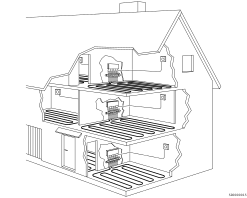
Example of a system
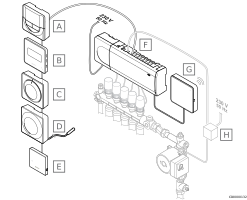
The illustration below shows Uponor Smatrix Base with several installation options and thermostats.
|
Error |
|
The floor sensor can be connected to a thermostat (except the T-141, T-144, or T-145). Which can be used for floor temperature limitation. For example, the maximum limitation can protect a sensitive floor covering from exposure of too high temperatures when there is a high heating demand. The minimum limitation can keep a tiled floor warm even when there is a no general heating demand for the room. |
Item |
Description |
|---|---|
A |
Uponor Smatrix Base T-146 (digital thermostat) |
B |
Uponor Smatrix Base T-149 (digital thermostat with RH) with floor sensor |
C |
Uponor Smatrix Base T-145 (standard thermostat) |
D |
Uponor Smatrix Base T-143 (public thermostat) |
E |
Uponor Smatrix Base T-141 (room sensor thermostat) |
F |
Uponor Smatrix Base Pulse X-245 (room controller) |
G |
Uponor Smatrix Pulse Com R-208 (communication module) |
H |
External connection box for pumps (third-party product, just schematic example in illustration) |
Uponor Smatrix Base Pulse components
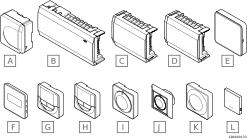
Item |
Uponor designation |
Description |
|---|---|---|
A |
Uponor Smatrix A-1XX |
Transformer module |
B |
Uponor Smatrix Base Pulse X-245 |
Room controller |
C |
Uponor Smatrix Base Pulse M-242 |
Slave module |
D |
Uponor Smatrix Base Pulse M-243 |
Star module |
E |
Uponor Smatrix Pulse Com R-208 |
Communication module |
F |
Uponor Smatrix Base T-149 |
Digital thermostat with relative humidity sensor and operative sensor |
G |
Uponor Smatrix Base T-148 |
Programmable digital thermostat with relative humidity sensor |
H |
Uponor Smatrix Base T-146 |
Digital thermostat |
I |
Uponor Smatrix Base T-145 |
Standard thermostat with print on dial |
J |
Uponor Smatrix Base T-144 |
Flush thermostat |
K |
Uponor Smatrix Base T-143 |
Public thermostat |
L |
Uponor Smatrix Base T-141 |
Room sensor thermostat with relative humidity sensor and operative sensor |
Room controller
|
Error, enter correct language code |
Only 24 V AC Uponor actuators are compatible with the room controller. |
The room controller operates the actuators, which in turn affect the flow of the supply water, to change the indoor temperature using information transmitted from registered thermostats and system parameters.
Up to six channels and eight actuators can be operated by the room controller which is typically located near the hydraulic system manifolds.
The illustration below shows the room controller with the transformer module and actuators.
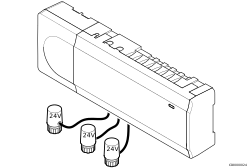
Uponor Smatrix Base Pulse X-245
Main characteristics:
Integrated Dynamic Energy Management functions such as autobalancing (on by default). Other functions such as comfort setting, room bypass, and supply temperature monitoring requires Uponor Smatrix Pulse app (requires communication module) and in some cases Uponor cloud services.
Electronic control of actuators.
Connection of maximum eight actuators (24 V AC).
2-way communication with up to six room thermostats.
Heating/cooling function (advanced), and/or Comfort/ECO mode switched by dry contact, public thermostat, or Uponor Smatrix Pulse app (requires communication module).
Separate relays for control of pump and boiler (other control functionality available via communication module and Uponor Smatrix Pulse app).
Valve and pump exercise.
Relative humidity control (Uponor Smatrix Pulse app required).
Control of combined underfloor heating/cooling and ceiling cooling (requires communication module and Uponor Smatrix Pulse app).
Lower indoor temperature in heating mode, or raise indoor temperature in cooling mode, with ECO mode. ECO mode is activated in all rooms at once using a dry contact, public thermostat, or Uponor Smatrix Pulse app (requires communication module). To activate ECO mode in a single room use a programmable digital thermostat, or ECO profiles.
Options:
App connectivity via communication module (remote connection requires connection to Uponor cloud services).
The room controller can be expanded with a slave module which adds an extra six thermostat channels and six actuator outputs.
The controller can be expanded with a star module which adds eight extra bus connectors to the system. It can be connected to the controller or slave module and is mostly used for a star topology.
Connect up to four room controllers into one system (requires communication module and Uponor Smatrix Pulse app).
Modular placement (detachable transformer).
Cabinet or wall mounted (DIN rail or supplied screws).
Free placement and orientation when installing the room controller (except the communication module which must be installed vertically).
Components of the room controller
The illustration below shows the room controller and its components.
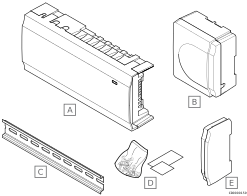
Item |
Description |
|---|---|
A |
Uponor Smatrix Base Pulse X-245 |
B |
Transformer module |
C |
DIN rail |
D |
Mounting material |
E |
End cap |
Communication module
|
Error |
Setting up a system with a communication module requires a mobile device (smart phone/tablet). |
|
Error |
It is recommended to attach the communication module to a wall outside of the cabinet when using Wi-Fi connection. |
The communication module enables local and remote (requires connection to Uponor cloud services) access to the room controller from a mobile device (using the Uponor Smatrix Pulse app).
The communication module contains a local network module for Wi-Fi or ethernet communication.
The app acts as a link between the user/installer and the room controller(s) running in the system, displaying information and enabling simplified programming of all relevant system settings. The Uponor Smatrix Pulse app can be downloaded from Google Play (Android) or App Store (iOS).
The Uponor Smatrix Base system can be operated without the app and communication module, but only with basic functionality (using the thermostats).
Uponor Smatrix Pulse Com R-208
Main characteristics:
Uponor Smatrix Pulse app connectivity via either Wi-Fi or ethernet.
-
Extra functionality (using Uponor Smatrix Pulse app):
Heating/cooling settings
Extra relay functionality (chiller, dehumidifier etc).
Integrate up to four room controller into one system.
Options:
Cabinet or wall mounted (DIN rail or supplied screws).
Components of the communication module
The illustration below shows the communications module and its components.
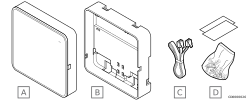
Item |
Description |
|---|---|
A |
Uponor Smatrix Pulse Com R-208 |
B |
Optional back mount for DIN-rail |
C |
Communication cable |
D |
Mounting material |
Thermostats
|
Error |
The thermostat is affected by the temperature of the surrounding surfaces as well as the ambient air temperature. |
The thermostats communicate with the controller by a wired communication protocol and are used either individually or in combination with each other.
The following Uponor Smatrix thermostats can be used in the system:
Uponor Smatrix Base T-141
The sensor thermostat is designed to be as small as possible, and still able to control the room temperature.
Main characteristics:
Operative sensor for increased comfort.
Adjust setpoint temperature via the Uponor Smatrix Pulse app (requires communication module).
Setpoint range is 5 – 35 °C (maximum and minimum setting may be limited by other system settings).
Relative humidity limit indicated in the Uponor Smatrix Pulse app (requires communication module).
Components of the sensor thermostat:
The illustration below shows the thermostat and its components.
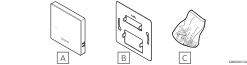
Item |
Description |
|---|---|
A |
Uponor Smatrix Base T-141 |
B |
Metal wall bracket |
C |
Mounting material |
Uponor Smatrix Base T-143
The thermostat is designed for public locations which means that the dial is hidden. It must be removed from the wall to set the temperature. When removed, an alarm is triggered (if activated).
The thermostat can be registered as a system device, enabling extra functions. When functioning as a system device, the internal room sensor is disabled.
Main characteristics:
Adjust setpoint temperature with a potentiometer on the back of the thermostat.
Setpoint range is 5 – 35 °C (maximum and minimum setting may be limited by other system settings).
Alarm is indicated on the room controller if removed from wall for tamper detection. Using the Uponor Smatrix Pulse app (requires communication module), the alarm will be displayed in the app as well.
Dry contact input for forced ECO mode of operation, if registered as a system device.
Optional external temperature sensor can be connected to the thermostat. Floor temperature limitation settings (maximum and minimum) are only available using the Uponor Smatrix Pulse app (requires communication module). Otherwise system defaults are used for limitation.
Optional outdoor temperature sensor can be registered as either standard thermostat or system device.
Dip switch for selecting between function or sensor mode of operation.
Enable or disable Comfort/ECO scheduling for the room with a dip switch on the back.
Components of the thermostat:
The illustration below shows the thermostat and its components.
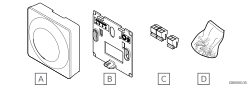
Item |
Description |
|---|---|
A |
Uponor Smatrix Base T-143 |
B |
Wall bracket |
C |
Connection terminals |
D |
Mounting material |
Uponor Smatrix Base T-144
The thermostat temperature settings are adjusted using the dial. Maximum/minimum temperatures can only be set using the Uponor Smatrix Pulse app (requires communication module). The 21 °C position is marked on the dial.
Main characteristics:
Flush installation, specially designed for in-wall box installation.
Adjust temperature setpoint with large dial.
Printed scale on the dial.
Setpoint range is 5 – 35 °C (maximum and minimum setting may be limited by other system settings).
LED indicating, for about 60 seconds, whether a heating or cooling demand exists.
Enable or disable Comfort/ECO scheduling for the room with a dip switch beneath the dial, which have to be removed for access.
Different frames can be used for installation in a switch rail frame.
Components of the thermostat:
The illustration below shows the thermostat and its components.
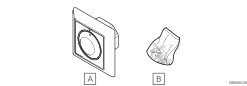
Item |
Description |
|---|---|
A |
Uponor Smatrix Base T-144 |
B |
Mounting material |
Uponor Smatrix Base T-145
The thermostat temperature settings are adjusted using the dial. Maximum/minimum temperatures can only be set using the Uponor Smatrix Pulse app (requires communication module). The 21 °C position is marked on the dial.
Main characteristics:
Adjust temperature setpoint with large dial.
LED ring indication when twisting the dial (changing temperature setpoint).
Setpoint range is 5 – 35 °C (maximum and minimum setting may be limited by other system settings).
LED in lower right corner indicating, for about 60 seconds, whether a heating or cooling demand exists.
Enable or disable Comfort/ECO scheduling for the room with a dip switch on the back.
Components of the thermostat:
The illustration below shows the thermostat and its components.
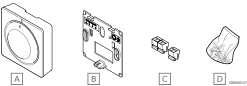
Item |
Description |
|---|---|
A |
Uponor Smatrix Base T-145 |
B |
Wall bracket |
C |
Connection terminals |
D |
Mounting material |
Uponor Smatrix Base T-146
The thermostat shows the ambient or set temperature on the display. Temperature settings are adjusted using the +/- buttons on the front.
Main characteristics:
Backlit display, dims after 10 seconds of inactivity.
Displays Celsius or Fahrenheit.
Calibration of displayed room temperature.
Heating/cooling demand on display.
Displays software version during power up sequence.
Setpoint range is 5 – 35 °C (maximum and minimum setting may be limited by other system settings).
Room temperature regulation with use of optional external temperature sensors.
Displays optional temperature sensor values if sensors are connected and relevant room temperature regulation is activated.
Switch between Comfort and ECO mode with scheduling (requires Uponor Smatrix Pulse app).
Adjust ECO setback value.
Components of the thermostat:
The illustration below shows the thermostat and its components.
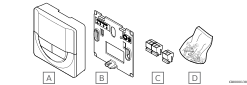
Item |
Description |
|---|---|
A |
Uponor Smatrix Base T-146 |
B |
Wall bracket |
C |
Connection terminals |
D |
Mounting material |
Uponor Smatrix Base T-148
The thermostat shows the ambient, set temperature, or relative humidity, and time on the display. Settings are adjusted using the +/- buttons on the front. Other programmable settings are scheduling and individual ECO mode (on a room by room basis) etc.
Uponor recommends only using this thermostat in systems without a communication module. The scheduling function in the thermostat is switched off in systems with a communication module.
Main characteristics:
Backlit display, dims after 10 seconds of inactivity.
Displays Celsius or Fahrenheit.
Calibration of displayed room temperature.
Heating/cooling demand on display.
Displays software version during power up sequence.
Setup wizard to set time and date when installed for the first time or after a factory reset.
12/24h clock for scheduling.
Internal memory to save time and date settings during short power outages.
Setpoint range is 5 – 35 °C (maximum and minimum setting may be limited by other system settings).
Room temperature regulation with use of optional external temperature sensors.
Displays optional temperature sensor values if sensors are connected and relevant room temperature regulation is activated.
Programmable to switch between Comfort and ECO modes with adjustable ECO setback value in the room.
When set to a program the T-148 cannot be overridden (ECO setback etc) by other system settings.
Relative humidity limit alarm indicated in display (requires communication module).
Scheduling, pre-programmed and customizable schedules.
Lower indoor temperature on a room by room basis with ECO mode.
Components of the thermostat:
The illustration below shows the thermostat and its components.
Item |
Description |
|---|---|
A |
Uponor Smatrix Base T-148 |
B |
Wall bracket |
C |
Connection terminals |
D |
Mounting material |
Uponor Smatrix Base T-149
The thermostat shows the ambient, set temperature, or relative humidity on the display. Temperature settings are adjusted using  /
/ buttons on the side of the thermostat.
Main characteristics:
Power saving e-paper display (updates every 10 minutes).
Displays Celsius or Fahrenheit.
Operative sensor for increased comfort.
Calibration of displayed room temperature.
Heating/cooling demand on display.
Displays Uponor logo and software version during power up sequence.
Setpoint range is 5 – 35 °C (maximum and minimum setting may be limited by other system settings).
Room temperature regulation with use of optional external temperature sensors.
Displays optional temperature sensor values if sensors are connected and relevant room temperature regulation is activated.
Switch between Comfort and ECO mode with scheduling (requires Uponor Smatrix Pulse app).
Adjust ECO setback value.
Relative humidity limit alarm indicated in display (requires communication module).
Invert display color.
Components of the thermostat:
The illustration below shows the thermostat and its components.
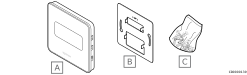
Item |
Description |
|---|---|
A |
Uponor Smatrix Base T-149 |
B |
Metal wall bracket |
C |
Mounting material |
Expansion module
The Uponor Smatrix Base room controller can be expanded with six extra channels and actuator outputs using a Slave module. A Star module can be used if the thermostats is to be installed in a centralized star topology (instead of the standard bus topology).
Uponor Smatrix Base Pulse M-242
|
Error |
Only one slave module extension is supported per room controller. |
Main characteristics:
Easy plug in installation on existing room controller, no additional wiring needed.
Register up to six extra thermostats to the system.
Connect up to six extra actuators (24 V).
Electronic control of actuators.
Valve exercise.
Components of the slave module
The illustration below shows the slave module and its components.
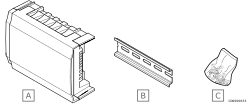
Item |
Description |
|---|---|
A |
Uponor Smatrix Base Pulse M-242 |
B |
DIN rail |
C |
Mounting material |
Uponor Smatrix Base Pulse M-243
|
Error |
|
Only one star module extension per bus type (thermostat and/or system bus) is supported per room controller. A star module can only be used for one bus type at a time. That is, a thermostat cannot be connected to a star module connected to the system bus and vice versa. |
Main characteristics:
Install the wiring from the thermostats in a centralized star topology (instead of a bus topology) which opens up for flexible wiring solutions.
Requires an Uponor Smatrix Base Pulse controller.
Adds 8 extra bus connectors to the system.
Only thermostat input signals is allowed.
Can be attached directly to the controller or slave module or by using a communication cable utilising one connector in each unit.
Components of the star module
The illustration below shows the star module and its components.
Item |
Description |
|---|---|
A |
Uponor Smatrix Base Pulse M-243 |
B |
DIN rail |
C |
Mounting material |
Uponor actuators
Uponor actuators are mounted on top of the manifold valves and is operated using either on/off signals or pulse width modulation (PWM) signals.
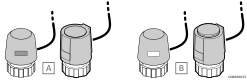 AActuator has closed the valve – empty indicator
BActuator has opened the valve – white indicator
On/off control
When installing a system with on/off control, manual balancing of the system is required.
As soon as the temperature measured at a thermostat is lower (heating mode) or higher (cooling mode) than the setpoint temperature, a demand to change the room temperature is created and sent to the room controller. The room controller will open the actuators according to current operating mode and other settings. Once the set temperature is reached, this information is sent and the actuators are closed. The indicator on the actuator shows, with a white bar, how much it is opened. If indicator (white) is fully shown it is fully opened, no white bar shown means that the actuator is closed.
Time to open and close an actuator may take a couple of minutes.
PWM control
|
Error |
Autobalancing can be used in combination with hydronic balancing. |
PWM control is used when the Autobalancing function is active.
When installing a system with PWM control, all balancing valves can be fully opened, the system is balanced automatically.
See Autobalancing, for more information.
Accessories
Uponor offers a wide variety of accessories for use with the standard portfolio.
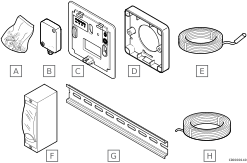
Item |
Component |
Description |
|---|---|---|
A |
Screws |
Mounting material for thermostats T-141, T‑143, T‑145, T‑146, T‑148, and T-149 |
B |
Uponor Smatrix S-113 (outdoor sensor S-113) |
Outdoor sensor for use with thermostats T‑143, T‑146, T-148 and T‑149 |
C |
Uponor Smatrix T-X A-1XX (wallframe T-X A-1XX) |
Wall frame for covering larger area of the wall than original back plate. Used at installation of thermostats T‑143, T‑145, T‑146, and T‑148 |
D |
Uponor Smatrix Base A-14X |
Surface distance adaptor, if needed, for mounting thermostat T-149 on the wall. |
E |
Uponor Smatrix S-114 (floor/remote sensor S-114) |
Floor/remote sensor for use with thermostats T‑143, T‑146, T-148 and T‑149 |
F |
Uponor Heating/Cooling relay |
Relay for connecting external voltage signal from a heating/cooling source, such as a heat pump, to a room controller input. |
G |
DIN rail |
DIN rail for use with Uponor Smatrix Base room controllers |
H |
Uponor Smatrix Bus cable A-145 |
Bus cable for use with thermostats |
Functions
|
Error |
Setting up a system with a communication module requires a mobile device (smart phone/tablet). |
The Uponor Smatrix room controler is used to operate an underfloor heating and/or cooling system in a house.
The room controller can also control heating via electrical underfloor heating using an external relay.
The thermostats registered to the room controller is used to control the actuators mounted on top of the manifold valves.
As soon as the temperature measured at a thermostat is lower (heating mode) or higher (cooling mode) than the setpoint temperature, a demand to change the room temperature is created and sent to the room controller. The room controller will operate the actuators according to current control mode and settings. This will manage the flow to the floor loops in the room and adjust the room temperature. Once the set temperature is reached, this information is sent to the room controller and the demand is met.
Actuator management
Actuator management prevents too many actuators to be open at the same time in order to reduce the peak power need. Peak current can be reduced by delaying the opening of some actuators, as they use most current while being opened.
Up to eight actuators in up to six rooms can be opened at the same time. Additional actuators are queued and opened in order.
Autobalancing
|
Error |
Autobalancing can be used in combination with hydronic balancing. |
The room controller can operate the actuator outputs by either on/off signals or by Autobalancing (on by default), using pulse width modulation (PWM) signals.
Autobalancing is a function which ensures that the required amount of energy is used to maintain the defined room temperatures (setpoint) without the need of manual balancing.
The function calculates the timing of the actuators and cyclically adapts to changing conditions. That way, it is ensured at all times that the necessary amount of energy is made available to the rooms and thermal adjustment of the rooms takes place.
This results in more even floor temperatures and faster system reaction times with lower energy consumption than any standard on/off system.
Comfort and ECO modes
|
Error |
|
Use only one Comfort/ECO switch in the system.
|
Using the communication module and Uponor Smatrix Pulse app, or an external switch (connected to the GPI or public thermostat), it is possible to regulate the temperature setpoint modes between two different temperatures. Available modes are Comfort and ECO (economy).
Switching between the Comfort/ECO modes can automatically be scheduled by connecting the communication module to Uponor cloud services. Scheduling in systems without a communication module requires a programmable thermostat, but it can only schedule Comfort/ECO in the room where it is registered.
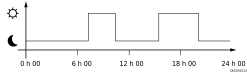
The diagram shows that the system delivers heating in comfort mode in the morning and afternoon, but the system enters ECO mode during night and in the middle of the day, when the house normally is empty.
Cooling function
The room controller operates the underfloor cooling installation according to customer needs. Temperatures can be adjusted with thermostats located in each room, or if installed with the Uponor Smatrix Pulse app (requires communication module).
As soon as the temperature measured at a thermostat is higher than the setpoint temperature, a demand to change the room temperature is created and sent to the room controller. The room controller will open the actuators according to current operating mode and other settings. If autobalancing is disabled, the actuators will open before the setpoint is reached. Once the set temperature is reached, this information is sent and the actuators are closed.
Uponor Smatrix Pulse app (requires communication module)
The system supports different types of cooling methods and is setup in the Uponor Smatrix Pulse app.
Available cooling methods in the Uponor Smatrix Pulse app.
-
Underfloor cooling (UC)
Cooling in the system is achieved using underfloor loops.
-
Ceiling cooling (CC)
Cooling in the system is achieved using ceiling cooling (2-pipe or 4-pipe system).
Select if the system utilizes a 2-pipe or 4-pipe delivery solution for heating/cooling.
-
2-pipe means one supply temperature to the system at a time (heating or cooling).
Autoblancing disabled:In rooms where underfloor heating/cooling is allowed. Underfloor cooling and ceiling cooling is both started when the room termperature is about 1 degree below setpoint.
Autobalancing enabled: Ceiling cooling and underfloor cooling will follow the current cooling demand.
-
4-pipe means separate independent heating/cooling sources.
In heating mode:
The underfloor loops are used when there is a heating demand.
In cooling mode:
Underfloor loops and ceiling cooling are used at the same time when there is a cooling demand.
-
See Uponor Smatrix Pulse app for more information about the individual functions.
Electrical underfloor heating
The Uponor Smatrix room controller can operate electrical underfloor heating (Uponor Comfort-E) using the actuator outputs.
The electrical underfloor heating mat/wire must be connected to the controller via a relay (dimensioned for the correct load), because of 24V AC controller output.
Heating/cooling offset
Uponor uses an offset temperature to adjust the setpoints when switching between heating and cooling. This improves the performance of the system and reduces the need of manual setpoint adjustments when switching between heating and cooling.
The offset is 2 °C and is used to increase the setpoints when switching to cooling. When switching back to heating, the value is used to reduce the setpoint.
Heating fallback
If the connection to a thermostat is lost, the corresponding loop cannot be regulated using the room temperature. The room controller then activates a fallback function for the affected loop and the actuators are operated with a set interval.
The function is activated until the thermostat is reconnected.
Low hysteresis temperature
Uponor uses a low hysteresis temperature for best performance of the system. It is used for high control accuracy by deciding when to start and stop heating and cooling, based on information from sensors and setpoint values.
Pump management (requires communication module)
|
Error, enter correct language code |
Changing status of the pump management and/or cooling allowed (in the Uponor Smatrix app, requires communication module) will set all relays to Not configured. Which will have to be configured again. |
|
Error |
In systems with multiple room controllers (master/sub configuration), all relays are initially set to Not configured. Which will have to be configured during installation. |
Each room controller has a pump relay, to which one circulation pump can be connected. Default operating mode of the circulation pump is set to Individual mode. Use the Uponor Smatrix Pulse app (requires communication module) to change the setting if needed. Available settings are Not configured, Common and Individual.
Common mode:
Relay function is set on a system wide basis. One circulation pump per system is connected (to the master room controller only). When there is a demand somewhere in the system, the main pump is started.
Individual mode:
Relay function is set on a room controller basis. One circulation pump per room controller is connected. When there is a demand to a specific room controller, only the circulation pump connected to that room controller is started.
Relative humidity function
|
Error |
RH control is activated in the Uponor Smatrix Pulse app (requires communication module). |
To avoid condensation when having a cooling system, it is recommended measuring the relative humidity (RH) in the rooms. The relative humidity is measured with one or more thermostats (with RH sensor).
Cooling is shut off on a per room basis when the relative humidity limit is reached (set in the Uponor Smatrix Pulse app, default 75%). If a dehumidifier is installed, one per room controller, it will be activated when the dehumidifier start limit is reached.
Cooling will start again and the dehumidifier is deactivated when the relative humidity falls below a hysteresis set in the Uponor Smatrix Pulse app (“Deadzone”, default 5%).
Room bypass (requires communication module)
The system can use up to two rooms (per room controller), when in heating mode, as bypass to maintain minimum flow in the system.
Rooms can be selected manually or by using the Time limit room bypass function.
Time limit room bypass
The time limit room bypass function prevents shorter run times than 30 minutes in the system. The room controller analyzes available system data such as current and future demands, setpoints, and room temperatures etc. Depending on the result of the analysis, suitable rooms are chosen to use as bypass.
System clock
To facilitate accurate log data, scheduling and different timer settings, the room controller receives the correct time and date from one of the input devices (communication module connected to Uponor cloud services, programmable thermostat etc). The clock can be set to automatically switch between summer and winter time (communication module connected to Uponor cloud services only).
Install Uponor Smatrix Base Pulse
Installation procedure
Uponor recommends following the process described below to guarantee the best possible installation results.
Prepare for installation
Verify the contents of the package with the packing list.
Check whether an external temperature sensor is to be installed with a compatible thermostat.
Study the wiring diagram in the installation and operation manual or inside the room controller cover.
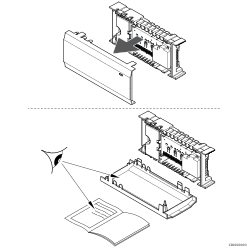
Ensure that the room controller can be installed close to the manifold pair. Note that each manifold pair must have its own room controller.
Ensure that the room controller can be mounted close to a 230 V AC wall socket, or if required by local regulations, to a junction box, connected to the mains power.
Ensure that installed Uponor Smatrix components are protected from running or dripping water.
Installation example
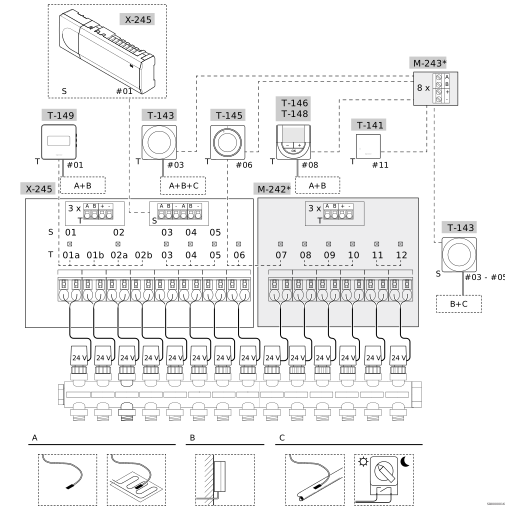
*) This example contains optional accessories which adds six actuator outputs (slave module M-242) and extra bus connectors (slave module M-242 and star module M-243) to the Uponor Smatrix Base Pulse controller
|
Error, enter correct language code |
Only 24 V AC Uponor actuators are compatible with the room controller. |
See Wiring diagram, for more information
Uponor Smatrix Base Pulse system
|
Error |
Setting up a system with a communication module requires a mobile device (smart phone/tablet). |
A connection example of Uponor Smatrix Base Pulse room rontroller (six channels) with optional Uponor Smatrix Base Pulse Slave Module (six extra channels and three extra bus connectors), and Uponor Smatrix Base Pulse Star Module (eight extra bus connectors), using system devices (S) and thermostats (T) as shown in figure.
The installation will work in a standard way with the thermostats regulating each room according to their set temperatures.
Connections
The system is based on a bus communications protocol (requires the thermostats unique ID to be registered to the controller), utilising daisy chain, direct or star topology connections. This allows serial and parallel connections, making wiring and connection of thermostats and system devices much easier than connecting one thermostat per connection terminal.
The wide array of connection possibilities presented with this communications protocol can be combined in any way best suited for the current system.
Thermostats and actuators
Thermostat #01 controls actuator channels 01a, 01b, 02a and 02b with the help of an option.
Thermostat #03 controls actuator channels 03 to 05 with the help of an option.
Thermostat #06 controls actuator channels 06 and 07.
Thermostat #08 controls actuator channels 08 to 10 with the help of an option.
Thermostat #11 controls actuator channels 11 and 12.
System devices
|
Error |
If registering a public thermostat with various functions as a system device, the thermostat only acts as a remote unit. It does not control the room temperature in the room where it is placed. |
|
Error |
System devices can only be registered to the master room controller. |
|
Error |
The room controller will time out after about 10 minutes of inactivity and revert to normal operation. The timer will be reset when a button is pressed or if a device has been registered to it. |
|
Error |
Sub room controllers can only be registered to the master room controller. |
|
Error |
|
If a room controller previously connected to a communication module is to be used as a sub room controller (or in a system without a communication module), restore it to sub room controller state by factory reset. Existing sub room controllers in the system must then either, reset system device channel 01, or register to another master room controller. |
-
Multiple room controllers
Multiple Uponor Smatrix room controllers can be linked together by assigning one room controller to be master and the rest to be sub room controllers.
The master room controller is assigned by connecting it to the communication module (only one room controller can be master in the system), and it can control up to three sub room controllers. Sub room controllers are assigned when registered (in order) to the master room controller.
Public thermostat T-143 with various functions (options B and C).
Option A
External temperature sensor.
Floor temperature sensor.
Option B
Outdoor temperature sensor.
Option C
External temperature sensor for heating/cooling switch.
Comfort/ECO mode switch.This option disables the Comfort/ECO option in the GPI.
Schedules
Programmable schedules can, during heating and/or cooling, switch between Comfort and ECO mode. See example below.
Schedule 1
Other rooms can, depending on system setup, simultaneously switch between Comfort and ECO mode according to their own programmed schedules.
This requires one or more of the following:
Uponor Smatrix Pulse app (requires communication module connected to Uponor cloud services)
The app allows for system wide, or individually programmed, schedules for the rooms in the system. Any other devices with its own programmed schedules are overridden and its menus hidden.
-
Uponor Smatrix Base T-148
The thermostat is in control of its own room, with restrictions stated above, regarding the Uponor Smatrix Pulse.
Schedule 2
Even if programmed schedules exist in the system, some rooms may still operate without any scheduling. These rooms will operate in constant Comfort mode and is not affected by the programming of other rooms.
Room sensor T-141:
Set the value using the Uponor Smatrix Pulse app (requires communication module).
Public thermostat T-143:
Set the switch on its back to comfort mode only.
Flush thermostat T-144:
Set the switch behind the dial to comfort mode only.
Standard thermostat T-145:
Set the switch on its back to comfort mode only.
Digital thermostats T-146 and T-149:
Set the ECO setback value in menu 03 to 0.
Digital thermostat T-148:
Set the ECO setback value in menu 03 to 0 and menu 00 to Off.
Heating/cooling switch
The heating/cooling switch is manually controlled through the Uponor Smatrix Pulse app (which controls the whole system), an external signal, the supply temperature, or depending on the indoor/outdoor temperature. It is used to switch the operation of the room controller between heating and cooling modes.
A single external signal (if used) can be connected to up to four Base room controllers at the same time, working in parallel. Reducing the number of heating/cooling switches needed in the system.
Network connectivity
|
Error |
Setting up a system with a communication module requires a mobile device (smart phone/tablet). |
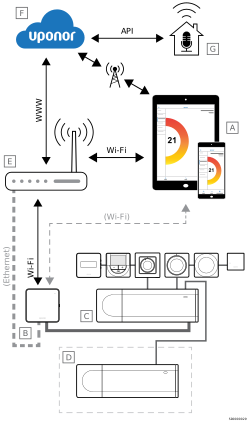
The room controller (C) can be setup and controlled using the Uponor Smatrix Pulse app (A) and communication module (B) through different connection methods.
Direct connection
The Uponor Smatrix Pulse app (A) communicates with the room controller (C) via direct connection to the communication module (B).
The mobile device connects directly, using Wi-Fi, to the access point in the communication module (B).
The sub room controller (D) communicates via the master room controller (C).
When is this method is used?
When installing and setting up a system.
During normal operation when there is no local Wi-Fi network available.
Local Wi-Fi connection
The Uponor Smatrix Pulse app (A) communicates with the room controller (C) via the communication module (B), connected to the local Wi-Fi network.
The mobile device connects to the same Wi-Fi router (E) as the communication module (B).
The communication module (B) and Wi-Fi router (E) are connected using either Wi-Fi or efternet.
The sub room controller (D) communicates via the master room controller (C).
When is this method is used?
During normal operation when connected to the same local Wi-Fi network.
Remote connection
|
Error |
Remote connection requires the user to setup a Uponor cloud services user account. |
The Uponor Smatrix Pulse app (A) communicates with the room controller (C) via a remote connection to the communication module (B).
The mobile device connects to Uponor cloud services (F) over internet (via local Wi-Fi or mobile network).
Uponor cloud services (F) connect to the communication module (B) via the local internet connected Wi-Fi router (E).
The communication module (B) and Wi-Fi router (E) are connected using either Wi-Fi or efternet.
The sub room controller (D) communicates via the master room controller (C).
When is this method is used?
During normal operation when outside the local Wi-Fi network.
API connection
|
Error |
API connection requires the user to setup a Uponor cloud services user account. |
The external system (G) communicates with the room controller (C) via an Application Programming Interface (API). An external system can be a heat pump, a smart home system, or a voice control assistant etc.
The external system (G) uses an API to communicate with Uponor cloud services (F).
Uponor cloud services (F) connect to the communication module (B) via the local internet connected Wi-Fi router (E).
The communication module (B) and Wi-Fi router (E) are connected using either Wi-Fi or efternet.
The sub room controller (D) communicates via the master room controller (C).
When is this method is used?
When external systems, such as heat pumps, smart home systems, voice control assistants etc, communicate with the Uponor Smatrix Pulse system.
Install Uponor Smatrix Base Pulse room controller
Placement of room controller
Use the following guidelines when positioning the room controller:
Position the room controller close to the manifold, just above if possible, and each manifold pair must have its own room controller. Check the position of the 230 V AC wall socket, or if required by local regulations, to a junction box, connected to the mains power.
Check that the room controller is protected from running or dripping water.
Check that the cover of the room controller can be easily removed.
Check that connectors and switches are easily accessible.
See Prepare for installation, for more information.
Modular placement
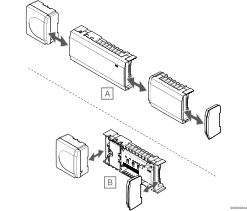
The room controller is designed with the option of modular placement in mind. This means that all major parts are detachable and can be placed separately (some extra wiring may be required depending on placement).
Attaching/detaching components
|
Error, enter correct language code |
The transformer module is heavy and might detach if the room controller is held upside down without the cover on. |
|
Error, enter correct language code |
The slave module must be attached by snapping it into place due to connection pins sticking out of the module. |
|
Error |
Wires between transformer and room controller card needs to be disconnected prior to detaching the transformer. |
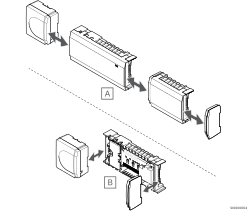
The components can either snap on or off without the need of removing the covers (A, recommended to do on a flat surface or on a DIN-rail), or by sliding them into place when the covers are removed (B).
Connect optional slave module
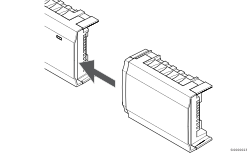
|
Error |
Only one slave module extension is supported per room controller. |
Snap the slave module to the room controller (recommended to do this on a flat surface or on a DIN-rail).
Remove the slave module
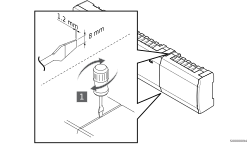
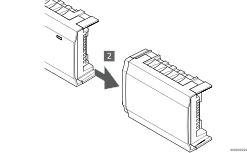
Place a wide flat head screwdriver in the slot between the slave module and the other unit and twist until the snap-in lock releases. Repeat for the other side.
Remove the slave module. Use caution not to bend the connection pins.
Connect optional star module
|
Error |
|
Only one star module extension per bus type (thermostat and/or system bus) is supported per room controller. A star module can only be used for one bus type at a time. That is, a thermostat cannot be connected to a star module connected to the system bus and vice versa. |
Snap the star module to the room controller, or slave module, (recommended to do this on a flat surface or on a DIN-rail).
Connect using bus cable instead
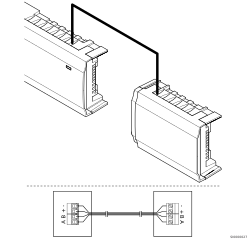
|
Error |
This connection method uses two extra connection points in the system. |
Lead the cables through cable entries on the top of the room controller and star module frames.
Insert the four wires (A,B, + and -) into the bus connectors on the room controller and star module.
Tighten the screws fixing the wires in the connectors.
Remove the star module
Place a wide flat head screwdriver in the slot between the star module and the other unit and twist until the snap-in lock releases. Repeat for the other side.
Remove the star module. Use caution not to bend the connection pins.
Attach room controller to the wall
Attach the room controller to the wall using a DIN-rail and/or screws and wall plugs.
Using DIN rail
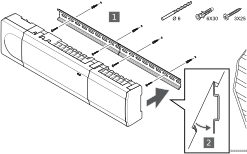
|
Error, enter correct language code |
Make sure the room controller cannot slide off the DIN rail if mounting it in any other position than horizontal. |
Fasten the DIN rail to the wall using the screws and wall plugs.
Snap the room controller to the DIN rail.
Remove from DIN rail
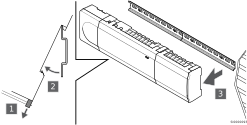
Use a screwdriver (or similar) and extend the springy plastic catcher from the room controller.
Angle the room controller from the wall.
Remove the room controller from the DIN rail.
Using screws and wall plugs
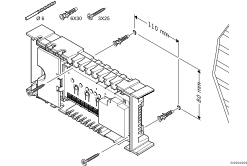
Attach the room controller to the wall using screws and wall plugs.
Install communication module
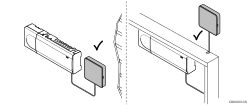
|
Error, enter correct language code |
If the room controller is installed inside a metal cabinet, the entire communication module must be placed outside the cabinet. |
|
Error, enter correct language code |
The communication module must be installed vertically for best coverage. |
|
Error |
Setting up a system with a communication module requires a mobile device (smart phone/tablet). |
|
Error |
It is recommended to attach the communication module to a wall outside of the cabinet when using Wi-Fi connection. |
|
Error |
If more than one room controller is available in the system, connect the communication module to the master room controller only. |
The communication module contains a local network module for Wi-Fi or ethernet communication.
1. Remove back mount
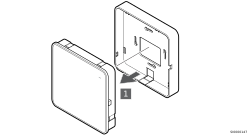
Separate the communication module from its removable back mount.
2. Attach removable back mount to the wall
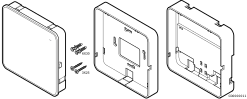
The communication module is delivered a kit with screws, wall plugs, and an optional back mount for DIN-rails, presenting several options of attaching the communication module to the wall.
Using screws and wall plugs
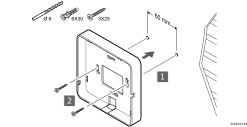
Attach the communication module back mount to the wall using the screws and wall plugs.
Using wall box
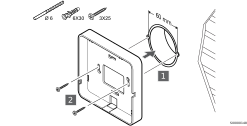
Attach the communication module back mount to the wall box.
Using adhesive tape
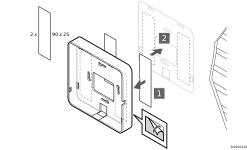
Attach the communication module back mount to the wall using adhesive tape.
Using DIN-rail
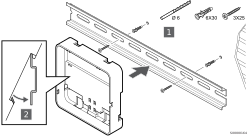
Fasten the DIN rail to the wall using the screws and wall plugs.
Snap the optional communication module DIN-rail back mount to the DIN rail.
Remove from DIN-rail
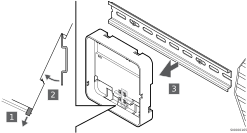
Use a screwdriver (or similar) and extend the springy plastic catcher from the communication module back mount.
Angle the communication module back mount from the wall.
Remove the communication module back mount from the DIN rail.
3. Route cables to communication module
The communication cable, and optional ethernet cable, is routed differently to the communication module depending on which back mount is being used.
Using standard back mount
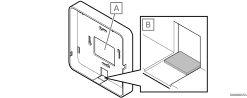
Route cables to the communication module using one of two cable entries.
ABack hole, mostly used when attached to wall box.BBreakout plastic, mostly used when attached to a wall. Remove the breakout plastic before mounting the back mount to the wall.
Using DIN-rail back mount
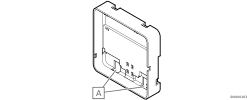
Route cables to the communication module using the cable entries (A).
4. Connect the communication cable
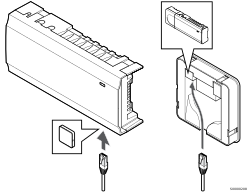
Connect the supplied communication cable to the communication module and room controller.
5. Connect the optional ethernet cable
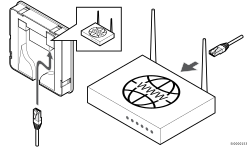
|
Error, enter correct language code |
DHCP (IP address assignment) must be activated in the router. |
Connect an ethernet cable to the communication module and the router.
This option is recommended if Wi-Fi is not available, or if the communication module is placed in a location with poor Wi-Fi reception.
6. Attach communication module
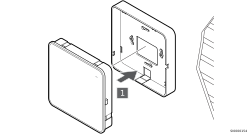
Attach the communication module to the removable back mount.
Connect actuators to room controller
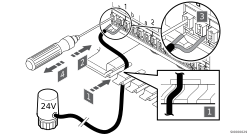
|
Error |
Each thermostat can control one or more channels. To simplify installation and maintenance, Uponor recommends that actuators controlled by the same thermostat shall be wired in sequence to the channels. |
|
Error |
Identify the room supplied by each loop on the manifold and determine which channel it must be connected to. |
Lead the cables from the actuators through cable entries in the bottom of the room controller frame.
Press the white button on the quick connector, using a thin screwdriver.
Insert a wire in the quick connector.
Remove the screwdriver.
Connect electrical underfloor heating
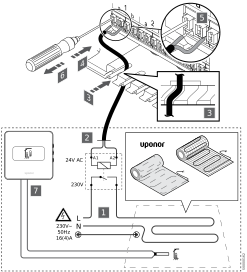
-
Connect the electrical underfloor heating mat/wire to a 24V AC relay dimensioned for the correct load.
Connect load (L, 230 V), and the electrical underfloor heating supply to a dry open contact.
Connect the 24V AC cables (to the room controller) to A1 and A2 connection terminals on the relay.
Lead the cables from the relay through cable entries in the bottom of the room controller frame.
Press the white button on the quick connector, using a thin screwdriver.
Insert a wire in the quick connector.
Remove the screwdriver.
-
Install a floor sensor to a compatible room thermostat, and set the control mode/DIP-switch.
Digital thermostat: "Room temperature with external floor sensor" (RFT)
Public thermostat: "Room temperature sensor and floor temperature sensor"
Connect thermostats to room controller
The system is based on a bus communications protocol, utilising daisy chain, direct or star topology connections. This makes wiring and connection of thermostats and system devices much easier than connecting one thermostat per connection terminal.
The wide array of connection possibilities presented with this communications protocol can be combined in any way best suited for the current system.
Daisy chain connection
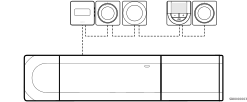
The thermostats in the example are connected in series and only one cable needs to be routed from the room controller and slave module (if available).
This method reduces the total length of cable needed in the system.
Direct connection to room controller and slave module
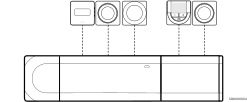
Every thermostat in the example is connected to the room controller and slave module (if available) with its own cable.
Connection to attached star module
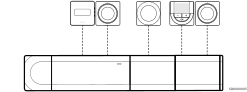
The star module is attached to the room controller and slave module (if available) adding extra connection terminals to the system. Each thermostat in the example is connected direct to the room controller, slave module (if available) and star module.
Connection to cable connected star module
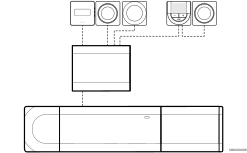
The star module is connected to the room controller and/or slave module (if available) with a cable, using two of the extra connection points. Each thermostat in the example is connected direct to the star module, except one that is connected with daisy chain.
Connect communication cable
Connect the communication cable to either the room controller, slave module, and/or star module.
Connect communication cable to room controller
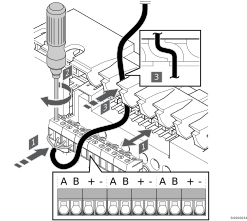
Lead the cables through cable entries on the top of the room controller frame.
Insert the four wires (A,B, + and -) into the connector on the room controller.
Tighten the screws fixing the wires in the connector.
Connect communication cable to slave module
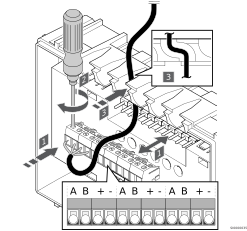
Lead the cables through cable entries on the top of the slave module frame.
Insert the four wires (A,B, + and -) into the connector on the slave module.
Tighten the screws fixing the wires in the connector.
Connect communication cable to star module
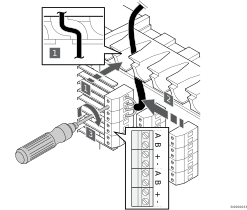
Lead the cables through cable entries in the star module frame.
Insert the four wires (A,B, + and -) into the connector on the electrical card.
Tighten the screws fixing the wires in the connector.
Connect communication cable to thermostat
Connect the communication cable to a thermostat.
Uponor Smatrix Base T-141
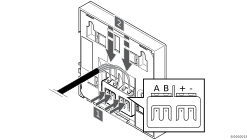
Press the push buttons on the connection terminal on the back of the thermostat.
While pressing the push buttons, insert each of the four wires into the connection terminal on the thermostat (marked A,B, + or -).
Uponor Smatrix Base T-143
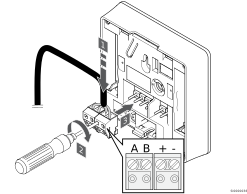
Insert the four wires into the removable connectors marked (A,B, + and -) on the thermostat.
Tighten the screws fixing the wires in the connector.
Insert the connectors on the input pegs on the thermostat.
Uponor Smatrix Base T-144
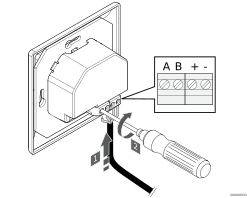
Insert the four wires into the connectors marked (A,B, + and -) on the thermostat.
Tighten the screws fixing the wires in the connector.
Uponor Smatrix Base T-145
Insert the four wires into the removable connectors marked (A,B, + and -) on the thermostat.
Tighten the screws fixing the wires in the connector.
Insert the connectors on the input pegs on the thermostat.
Uponor Smatrix Base T-146
Insert the four wires into the removable connectors marked (A,B, + and -) on the thermostat.
Tighten the screws fixing the wires in the connector.
Insert the connectors on the input pegs on the thermostat.
Uponor Smatrix Base T-148
Insert the four wires into the removable connectors marked (A,B, + and -) on the thermostat.
Tighten the screws fixing the wires in the connector.
Insert the connectors on the input pegs on the thermostat.
|
Error |
|
The thermostat will power up when it is connected to the room controller, and the room controller is connected to AC power. When powered up the thermostat may require the time and date to be set. This setting can be accessed later in thermostat settings. |
Uponor Smatrix Base T-149
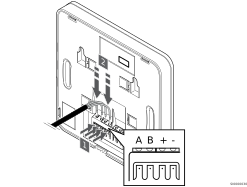
Press the push buttons on the connection terminal on the back of the thermostat.
While pressing the push buttons, insert each of the four wires into the connection terminal on the thermostat (marked A,B, + or -).
Connect input to room controller GPI
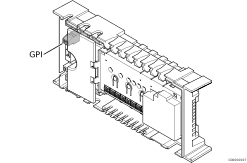
|
Error |
If more than one room controller is available in the system, use the input on the master room controller. |
The room controller is equipped with a General Purpose Input (GPI) connection terminal. Set the kind of input signal to be expected.
When the signal is closed the function is activated.
Heating/cooling switch
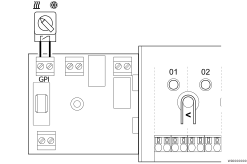
|
Error |
In systems with a communication module installed, the function of the GPI is selected in Installer settings during initial configuration, or in the System settings menu. |
Ensure that the power is disconnected from both the room controller and the heating/cooling switch (dry contact).
Route the cable to/from the heating/cooling input via a cable entry.
Connect the cable to the room controller connector labelled GPI.
Comfort/ECO switch (requires communication module)
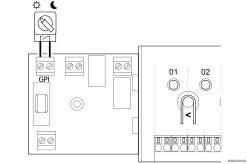
|
Error |
In systems with a communication module installed, the function of the GPI is selected in Installer settings during initial configuration, or in the System settings menu. |
|
Error |
|
Use only one Comfort/ECO switch in the system.
|
Ensure that the power is disconnected from both the room controller and the Comfort/ECO switch (dry contact).
Route the cable to/from the Comfort/ECO switch input via a cable entry.
Connect the cable to the room controller connector labelled GPI.
General System Alarm (requires communication module)
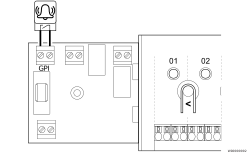
|
Error |
In systems with a communication module installed, the function of the GPI is selected in Installer settings during initial configuration, or in the System settings menu. |
Ensure that the power is disconnected from both the room controller and the unit to receive an alarm signal from.
Route the cable to/from the other unit via a cable entry.
Connect the cable to the room controller connector labelled GPI.
Connect output to room controller relays
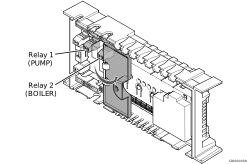
|
Error, enter correct language code |
Changing status of the pump management and/or cooling allowed (in the Uponor Smatrix app, requires communication module) will set all relays to Not configured. Which will have to be configured again. |
|
Error |
In systems with multiple room controllers (master/sub configuration), all relays are initially set to Not configured. Which will have to be configured during installation. |
|
Error |
The room controller cannot supply power for the output. |
|
Error |
The room controller uses a dry contact connection on the terminal block to control the output. When the relay closes the function is activated. |
|
Error |
The electrical circuits of the output must be protected by a circuit breaker with a maximum rating of 8 A. |
The room controller has two relays which can be operated independently.
The relays on the master room controller can be set to one of the following combinations. A communication module is required to change the relay configuration from default values.
Relay 1 (PUMP) |
Relay 2 (BOILER) |
|---|---|
Circulation pump (default)1) |
Boiler (default) |
Circulation pump1) |
H/C Switch3) |
Circulation pump1) |
Dehumidifier5) |
Chiller1)3) |
Boiler |
Circulation pump1) |
Comfort/ECO6) |
Not configured |
Not configured |
The relays on the sub room controller can be set to one of the following combinations. A communication module is required for configuration.
Relay 1 (PUMP) |
Relay 2 (BOILER) |
|---|---|
Circulation pump2) |
H/C Switch4) |
Circulation pump2) |
Dehumidifier5) |
Not configured |
Not configured |
2)Function only available when Pump management is set to Individual, otherwise "Not used" is shown in the Uponor Smatrix Pulse app.
3)Function only available when cooling is activated.
4)Function only available when cooling is activated, otherwise "Not used" is shown in the Uponor Smatrix Pulse app.
5)Function only available during relative humidity control (in cooling, no fan coils).
6)This function is also used when connecting a ventilation unit.
Circulation pump
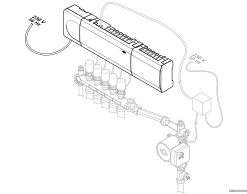
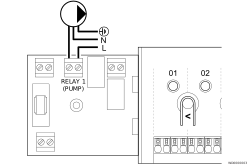
|
Error, enter correct language code |
Risk of electrical shock! Electrical installation and service behind secured 230 V AC covers must be carried out under the supervision of a qualified electrician. |
|
Error |
See the documentation from the circulation pump supplier as well as relevant Uponor wiring diagrams before connecting the pump. |
|
Error |
There is no power in the room controller to supply the pump. The connector in the room controller provides only a dry contact to switch off and on the power connection to the pump. |
Ensure that the power is disconnected from both the room controller and the circulation pump.
Remove the screw and open the cover for the optional connections compartment.
Route the cable to/from the pump via a cable entry.
Connect the L wire to/from the pump via the connection labelled Relay 1 (PUMP).
Secure the pump cable with a cable clamp in the enclosure.
Close and secure the lid to the optional connections compartment.
Relay function
The room controller start the circulation pump (relay closed) when there is a demand for heating or cooling.
If a communication module is connected and multiple room controllers are used the relay can be set to individal or common pump mode.
Individual pump:Relay function is set on a room controller basis. One circulation pump per room controller is connected to relay 1. When there is a demand to a specific room controller, only the pump connected to that room controller is started.
Common pump:Relay function is set on a system wide basis. One pump per system is connected (to the master room controller relay 1 only). When there is a demand somewhere in the system, the main pump is started.
When set to Common, the circulation pump relay can be used for other functions on the sub room controller. See room controller relays for more information.
Boiler
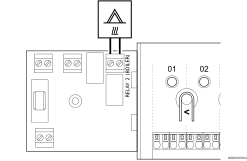
|
Error, enter correct language code |
Risk of electrical shock! Electrical installation and service behind secured 230 V AC covers must be carried out under the supervision of a qualified electrician. |
|
Error |
This connection requires a dry contact sensing input in the boiler. |
|
Error |
There is no power in the room controller to supply the boiler. The boiler connector in the room controller provides only a dry contact to switch on and off the power connection to the boiler. |
Ensure that the power is disconnected from both the room controller and the boiler.
Remove the screw and open the cover for the optional connections compartment.
Route the cable from/to the boiler via a cable entry.
Connect the boiler to the connection labelled Relay 2 (BOILER).
Secure the cable to/from the boiler with a cable clamp in the enclosure.
Close and secure the lid to the optional connections compartment.
Relay function
The boiler relay can be used to send to either an ON signal to a heat source, or to power open a 2-port motorised zone valve (positioned on the flow line to the underfloor heating manifold). If the relay is used to power open a zone valve, the volt free auxiliary contacts on the zone valve should be used to operate the heat source.
Alternatively, the boiler relay can be used to send a demand signal to an electrically operated water temperature room controller. The additional contacts on the water temperature controller should then be used to operate the heat source.
The boiler is activated when the relay is closed.
Heating/cooling (requires communication module)
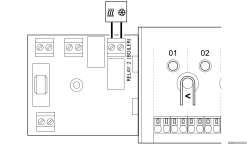
|
Error, enter correct language code |
Risk of electrical shock! Electrical installation and service behind secured 230 V AC covers must be carried out under the supervision of a qualified electrician. |
|
Error, enter correct language code |
If more than one room controller is available in the system, and the circulation pump settings in Installer settings is set to Common. The connector on the other room controllers can be used for heating/cooling output signal. |
|
Error |
This connection requires a dry contact sensing input in the component producing heating/cooling. |
|
Error |
This relay function requires a communication module, and must be set in Installer settings during initial configuration, or in the System settings menu. |
|
Error |
In systems with a communication module, make sure that room controller, relay 2 (Boiler), is set to H/C Switch in Installer settings and that cooling is available in the system. |
Ensure that the power is disconnected from both the room controller and the heating/cooling relay.
Remove the screw and open the cover for the optional connections compartment.
Route the cable from/to the heating/cooling relay via a cable entry.
Connect the heating/cooling relay to the connection labelled Relay 2 (BOILER).
Secure the cable to/from the heating/cooling relay with a cable clamp in the enclosure.
Close and secure the lid to the optional connections compartment.
Relay function
Heating is activated when the relay is open, and cooling is activated when the relay is closed.
Dehumidifier (requires communication module)
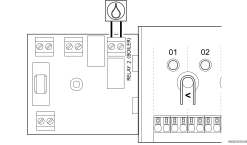
|
Error, enter correct language code |
Risk of electrical shock! Electrical installation and service behind secured 230 V AC covers must be carried out under the supervision of a qualified electrician. |
|
Error |
This connection requires a dry contact sensing input in the dehumidifier. |
|
Error |
This relay function requires a communication module, and must be set in Installer settings during initial configuration, or in the System settings menu. |
|
Error |
In systems with a communication module, make sure that room controller, relay 2 (Boiler), is set to Dehumidifier in Installer settings. |
Ensure that the power is disconnected from both the room controller and the dehumidifier.
Remove the screw and open the cover for the optional connections compartment.
Route the cable from/to the dehumidifier via a cable entry.
Connect the dehumidifier to the connection labelled Relay 2 (BOILER).
Secure the cable to/from the dehumidifier with a cable clamp in the enclosure.
Close and secure the lid to the optional connections compartment.
Relay function
The dehumidifier starts (relay closed) when the relative humidity setpoint is reached when in cooling mode. It will stop when the minimum run time of 30 minutes has finalized and when the relative humidity has decreased below the defined RH setpoint - deadzone.
Chiller (requires communication module)
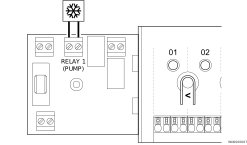
|
Error, enter correct language code |
Risk of electrical shock! Electrical installation and service behind secured 230 V AC covers must be carried out under the supervision of a qualified electrician. |
|
Error |
This connection requires a dry contact sensing input in the chiller. |
|
Error |
This relay function requires a communication module, and must be set in Installer settings during initial configuration, or in the System settings menu. |
|
Error |
In systems with a communication module, make sure that room controller, relay 1 (Pump), is set to Chiller in Installer settings. |
Ensure that the power is disconnected from both the room controller and the chiller.
Remove the screw and open the cover for the optional connections compartment.
Route the cable from/to the chiller via a cable entry.
Connect the chiller to the connection labelled Relay 1 (PUMP).
Secure the cable to/from the chiller with a cable clamp in the enclosure.
Close and secure the lid to the optional connections compartment.
Relay function
The chiller starts (relay closed) when there is a cooling demand while in cooling mode. It will stop when the cooling demand is met.
Comfort/ECO (requires communication module)
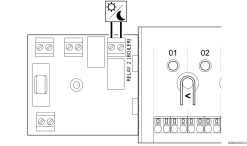
|
Error, enter correct language code |
Risk of electrical shock! Electrical installation and service behind secured 230 V AC covers must be carried out under the supervision of a qualified electrician. |
|
Error |
This connection requires a dry contact sensing input in the other unit. |
|
Error |
This relay function requires a communication module, and must be set in Installer settings during initial configuration, or in the System settings menu. |
|
Error |
In systems with a communication module, make sure that room controller, relay 2 (Boiler), is set to Comfort/ECO in Installer settings. |
Ensure that the power is disconnected from both the room controller and the other unit.
Remove the screw and open the cover for the optional connections compartment.
Route the cable from/to the other unit via a cable entry.
Connect the other unit to the connection labelled Relay 2 (BOILER).
Secure the cable to/from the other unit with a cable clamp in the enclosure.
Close and secure the lid to the optional connections compartment.
Relay function
ECO mode is activated when the relay is closed.
This function requires a communication module, and to change the setting of the relay output (Installer settings) to Comfort/ECO.
Ventilation (requires communication module)
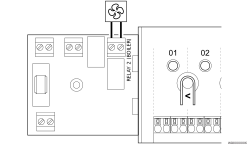
|
Error, enter correct language code |
Risk of electrical shock! Electrical installation and service behind secured 230 V AC covers must be carried out under the supervision of a qualified electrician. |
|
Error |
This connection requires a dry contact sensing input in the ventilation unit. |
|
Error |
This relay function requires a communication module, and must be set in Installer settings during initial configuration, or in the System settings menu. |
|
Error |
In systems with a communication module, make sure that room controller, relay 2 (Boiler), is set to Comfort/ECO in Installer settings. |
Ensure that the power is disconnected from both the room controller and the ventilation unit.
Remove the screw and open the cover for the optional connections compartment.
Route the cable from/to the ventilation unit via a cable entry.
Connect the ventilation unit to the connection labelled Relay 2 (BOILER).
Secure the cable to/from the ventilation unit with a cable clamp in the enclosure.
Close and secure the lid to the optional connections compartment.
Relay function
The relay is closed when the Uponor Smatrix system is set to ECO. The ventilation must be setup to lower its speed when the input is closed (ECO), and to switch back when the input is opened again (Comfort).
This function requires a communication module, and to change the setting of the relay output (Installer settings) to Comfort/ECO.
Connect room controller to AC power
1. Check wiring
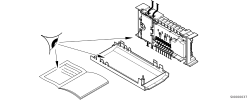
Check that all wiring is complete and correct:
Actuators
GPI connection (Heating/cooling switch)
Relay connections (Circulation pump)
2. Close 230 V AC compartment
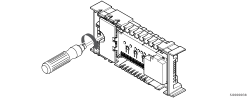
|
Error, enter correct language code |
Risk of electrical shock! Electrical installation and service behind secured 230 V AC covers must be carried out under the supervision of a qualified electrician. |
Ensure that the 230 V AC compartment of the room controller is closed and the fixing screw is tightened.
3. Power up the room controller
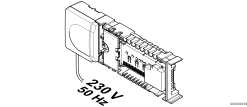
|
Error, enter correct language code |
Risk of electrical shock! Electrical installation and service behind secured 230 V AC covers must be carried out under the supervision of a qualified electrician. |
Connect the power cable to a 230 V AC wall socket, or if required by local regulations, to a junction box.
Test actuators
1. Enter forced mode

Press the > button, while in run mode, to enter forced mode.
The room controller is in run mode during regular operation. Otherwise press and hold the OK button for about 3 seconds to exit to run mode.
2. Select a channel

Use buttons < or > to move the pointer (LED flashes red) to a preferred channel.
3. Test channel
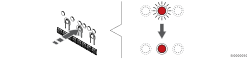
|
Error |
To end forced operation, enter forced mode, select the active channel, and press the OK button. |
|
Error |
Testing an actuator takes about 10 minutes and the room controller automatically returns to run mode when finished. |
Press the OK button to activate forced mode for the selected channel.
Channel LED |
Status |
|---|---|
Solid red |
The actuator starts opening and the system exits to run mode. |
Flashing red |
The channel cannot be chosen for forced operation. Try again later. |
Off |
Actuator management may be delaying the actuator, if more than eight channels are opened at the same time. |
Install Uponor Smatrix Base room thermostat
Uponor Smatrix Base T-141
Placement of thermostat
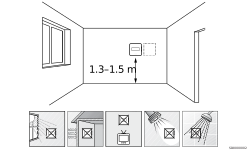
Select an indoor wall and a position 1.3 m to 1.5 m above the floor.
Ensure that the thermostat is away from direct sunlight.
Ensure that the thermostat will not be heated through the wall by sunshine.
Ensure that the thermostat is away from any source of heat, for example television set, electronic equipment, fireplace, spotlights, and so on.
Ensure that the thermostat is away from any source of humidity and water splashes (IP20).
Label thermostat
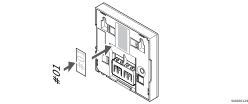
Label the thermostat, where suitable, with the channel numbers they are to control, for example, #02, #03. For a system with several room controllers, add the ID of each room controller, for example, 1.02, 1.03, 2.02, 2.03.
Connect communication cable to thermostat
Press the push buttons on the connection terminal on the back of the thermostat.
While pressing the push buttons, insert each of the four wires into the connection terminal on the thermostat (marked A,B, + or -).
Attach thermostat to the wall
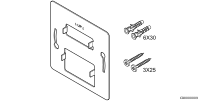
The thermostat is delivered in a kit with screws, wall plugs, and a wall bracket, presenting several options of attaching the thermostat to the wall.
Wall bracket (recommended)
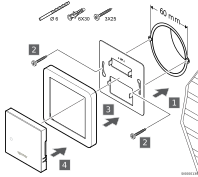
Sensor frame not supplied by Uponor.
Attach the thermostat to the wall using the wall bracket, screws and wall plugs.
|
Error, enter correct language code |
Do not overtighten the screws for the wall bracket. It may cause the metal to distort. |
Using wall bracket and surface adaptor (optional)
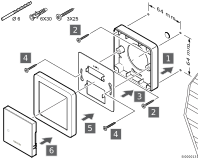
Sensor frame not supplied by Uponor.
Attach the thermostat to the wall using the wall bracket, optional surface adaptor, screws and wall plugs.
|
Error, enter correct language code |
Do not overtighten the screws for the wall bracket. It may cause the metal to distort. |
Screw and wall plug
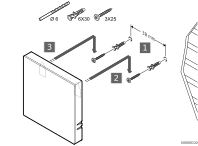
Attach the thermostat to the wall using the screw and wall plug.
Register thermostat to room controller
1. Enter registration mode
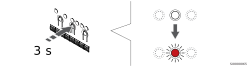
Press and hold the OK button on the room controller until the LED for channel 1 (or the first unregistered channel) flashes red.
2. Select a channel
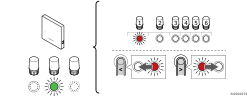
Use buttons < or > to move the pointer (LED flashes red) to a preferred channel.
3. Lock selected channel
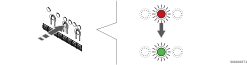
|
Error |
It is recommended to register all channels to the thermostat at the same time. |
Press the OK button to select the channel for registration. The LED for the selected channel starts flashing green.
Select all channels to be registered to the thermostat and continue to the next step.
4. Register thermostat
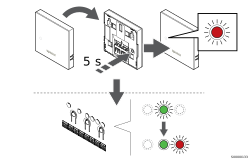
Gently press and hold the registration button on the thermostat, release when the LED on the front of the thermostat starts flashing.
The selected channel LED in the room controller turns fixed green and the registration is complete.
5. Exit registration mode
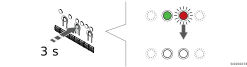
Press and hold the OK button on the room controller until the green LEDs turn off to end registration and return to run mode.
To unregister already registered thermostats, see Unregister room controller channels.
Uponor Smatrix Base T-143
Placement of thermostat
Select an indoor wall and a position 1.3 m to 1.5 m above the floor.
Ensure that the thermostat is away from direct sunlight.
Ensure that the thermostat will not be heated through the wall by sunshine.
Ensure that the thermostat is away from any source of heat, for example television set, electronic equipment, fireplace, spotlights, and so on.
Ensure that the thermostat is away from any source of humidity and water splashes (IP20).
Label thermostat
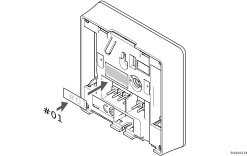
Label the thermostat, where suitable, with the channel numbers they are to control, for example, #02, #03. For a system with several room controllers, add the ID of each room controller, for example, 1.02, 1.03, 2.02, 2.03.
If an external sensor is connected, add information about sensor type when applicable.
Available thermostat and sensor combinations:
Room temperature
Room and floor temperature
Room and outdoor temperature
Remote sensor temperature
Connect external sensor to thermostat
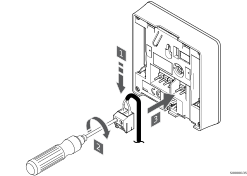
Insert the two wires from the sensor cable (non polarized) into the removable connector.
Tighten the screws fixing the wires in the connector.
Insert the connector on the input pegs on the thermostat.
|
Error |
For accurate temperature: attach the outdoor sensor to the north side of the building where it is unlikely to be exposed to direct sunlight. Do not place it close to doors, windows, or air outlets. |
When used as a regular thermostat the external sensor terminal can be used to connect a floor temperature sensor, an outdoor temperature sensor, or a remote temperature sensor. Use the DIP switches on the thermostat to select function mode.
DIP switch
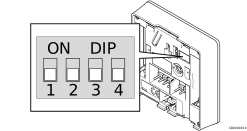
|
Error, enter correct language code |
The DIP switch in the thermostat must be set before it is registered. |
|
Error, enter correct language code |
The switches must be set to one of the available functions, otherwise the thermostat cannot be registered. |
Set the DIP switch according to the function of the thermostat.
Thermostat function |
Switch |
|---|---|
Room temperature sensor |
 |
Room temperature sensor and floor temperature sensor |
 |
Room temperature sensor and outdoor temperature sensor |
 |
Remote sensor |
 |
Connect communication cable to thermostat
Insert the four wires into the removable connectors marked (A,B, + and -) on the thermostat.
Tighten the screws fixing the wires in the connector.
Insert the connectors on the input pegs on the thermostat.
Attach thermostat to the wall
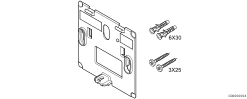
The thermostat is delivered in a kit with screws, wall plugs, and a wall bracket, presenting several options of attaching the thermostat to the wall.
Wall bracket (recommended)
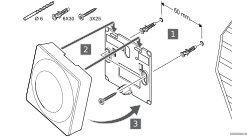
Attach the thermostat to the wall using the wall bracket, screws and wall plugs.
Screw and wall plug
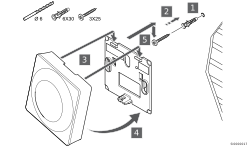
Attach the thermostat to the wall using the screw and wall plug.
Register thermostat to room controller
1. Enter registration mode
Press and hold the OK button on the room controller until the LED for channel 1 (or the first unregistered channel) flashes red.
|
Error, enter correct language code |
The DIP switch in the thermostat must be set before it is registered. |
2. Select a channel
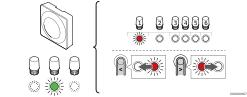
Use buttons < or > to move the pointer (LED flashes red) to a preferred channel.
3. Lock selected channel
|
Error |
It is recommended to register all channels to the thermostat at the same time. |
Press the OK button to select the channel for registration. The LED for the selected channel starts flashing green.
Select all channels to be registered to the thermostat and continue to the next step.
4. Activate tamper alarm
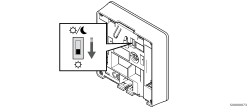
Optional: To activate tamper alarm for the thermostat, set the Disable timer switch to Comfort mode ( ) before registering the thermostat.
5. Register thermostat
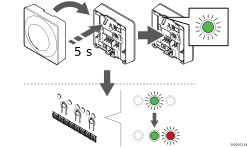
Gently press and hold the registration button on the thermostat, release when the LED starts flashing green (located in the hole above the registration button).
The selected channel LED in the room controller turns fixed green and the registration is complete.
6. Set Disable timer switch
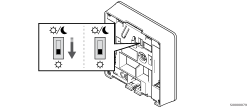
Optional: If tamper alarm was activated during registration, set the Disable timer switch to preferred mode.
7. Exit registration mode
Press and hold the OK button on the room controller until the green LEDs turn off to end registration and return to run mode.
To unregister already registered thermostats, see Unregister room controller channels.
Uponor Smatrix Base T-144
Placement of thermostat
Select an indoor wall and a position 1.3 m to 1.5 m above the floor.
Ensure that the thermostat is away from direct sunlight.
Ensure that the thermostat will not be heated through the wall by sunshine.
Ensure that the thermostat is away from any source of heat, for example television set, electronic equipment, fireplace, spotlights, and so on.
Ensure that the thermostat is away from any source of humidity and water splashes (IP20).
Label thermostat
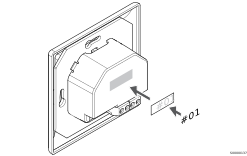
Label the thermostat, where suitable, with the channel numbers they are to control, for example, #02, #03. For a system with several room controllers, add the ID of each room controller, for example, 1.02, 1.03, 2.02, 2.03.
Connect communication cable to thermostat
Insert the four wires into the connectors marked (A,B, + and -) on the thermostat.
Tighten the screws fixing the wires in the connector.
Attach thermostat to the wall
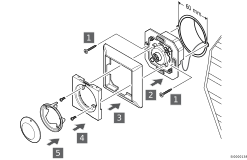
Insert the wall bracket into a wall box and fasten it with screws. Make sure the communication wires is connected.
Attach and hold the wall frame into place.
Fasten the wall frame with the two screws and plastic insert.
Attach the transparent LED-ring.
Attach the dial.
Register thermostat to room controller
1. Enter registration mode
Press and hold the OK button on the room controller until the LED for channel 1 (or the first unregistered channel) flashes red.
2. Select a channel
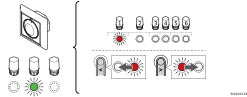
Use buttons < or > to move the pointer (LED flashes red) to a preferred channel.
3. Lock selected channel
|
Error |
It is recommended to register all channels to the thermostat at the same time. |
Press the OK button to select the channel for registration. The LED for the selected channel starts flashing green.
Select all channels to be registered to the thermostat and continue to the next step.
4. Register thermostat
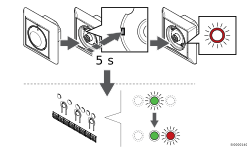
Using a pointed instrument, gently press and hold the registration button on the thermostat, release when the LED above the dial starts flashing.
The selected channel LED in the room controller turns fixed green and the registration is complete.
5. Exit registration mode
Press and hold the OK button on the room controller until the green LEDs turn off to end registration and return to run mode.
Uponor Smatrix Base T-145
Placement of thermostat
Select an indoor wall and a position 1.3 m to 1.5 m above the floor.
Ensure that the thermostat is away from direct sunlight.
Ensure that the thermostat will not be heated through the wall by sunshine.
Ensure that the thermostat is away from any source of heat, for example television set, electronic equipment, fireplace, spotlights, and so on.
Ensure that the thermostat is away from any source of humidity and water splashes (IP20).
Label thermostat
Label the thermostat, where suitable, with the channel numbers they are to control, for example, #02, #03. For a system with several room controllers, add the ID of each room controller, for example, 1.02, 1.03, 2.02, 2.03.
Connect communication cable to thermostat
Insert the four wires into the removable connectors marked (A,B, + and -) on the thermostat.
Tighten the screws fixing the wires in the connector.
Insert the connectors on the input pegs on the thermostat.
Attach thermostat to the wall
The thermostat is delivered in a kit with screws, wall plugs, and a wall bracket, presenting several options of attaching the thermostat to the wall.
Wall bracket (recommended)
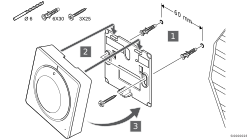
Attach the thermostat to the wall using the wall bracket, screws and wall plugs.
Screw and wall plug
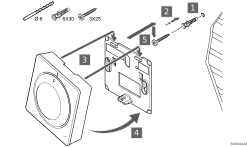
Attach the thermostat to the wall using the screw and wall plug.
Register thermostat to room controller
1. Enter registration mode
Press and hold the OK button on the room controller until the LED for channel 1 (or the first unregistered channel) flashes red.
2. Select a channel
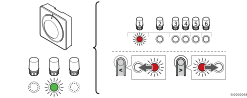
Use buttons < or > to move the pointer (LED flashes red) to a preferred channel.
3. Lock selected channel
|
Error |
It is recommended to register all channels to the thermostat at the same time. |
Press the OK button to select the channel for registration. The LED for the selected channel starts flashing green.
Select all channels to be registered to the thermostat and continue to the next step.
4. Register thermostat
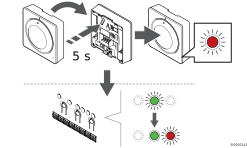
Gently press and hold the registration button on the thermostat, release when the LED on the front of the thermostat starts flashing.
The selected channel LED in the room controller turns fixed green and the registration is complete.
5. Exit registration mode
Press and hold the OK button on the room controller until the green LEDs turn off to end registration and return to run mode.
To unregister already registered thermostats, see Unregister room controller channels.
Uponor Smatrix Base T-146
Placement of thermostat
Select an indoor wall and a position 1.3 m to 1.5 m above the floor.
Ensure that the thermostat is away from direct sunlight.
Ensure that the thermostat will not be heated through the wall by sunshine.
Ensure that the thermostat is away from any source of heat, for example television set, electronic equipment, fireplace, spotlights, and so on.
Ensure that the thermostat is away from any source of humidity and water splashes (IP20).
Label thermostat
Label the thermostat, where suitable, with the channel numbers they are to control, for example, #02, #03. For a system with several room controllers, add the ID of each room controller, for example, 1.02, 1.03, 2.02, 2.03.
If an external sensor is connected, add information about sensor type when applicable.
Available thermostat and sensor combinations:
Room temperature
Room and floor temperature
Room and outdoor temperature
Remote sensor temperature
Connect external sensor to thermostat
Insert the two wires from the sensor cable (non polarized) into the removable connector.
Tighten the screws fixing the wires in the connector.
Insert the connector on the input pegs on the thermostat.
|
Error |
For accurate temperature: attach the outdoor sensor to the north side of the building where it is unlikely to be exposed to direct sunlight. Do not place it close to doors, windows, or air outlets. |
The external temperature sensor input can be used for either a floor, outdoor or remote temperature sensor. Use the software on the thermostat to select a control mode which corresponds to the use of the sensor and thermostat.
Connect communication cable to thermostat
Insert the four wires into the removable connectors marked (A,B, + and -) on the thermostat.
Tighten the screws fixing the wires in the connector.
Insert the connectors on the input pegs on the thermostat.
Select thermostat control mode
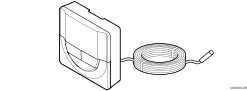
|
Error, enter correct language code |
|
The thermostat control mode must be set before the thermostat is registered to the room controller. Later changes to this setting requires the thermostat to be registered again. |
|
Error |
If no button on the thermostat is pressed for about 8 seconds, while in a submenu, the current values will be saved and the software exits to the settings menu. About about 60 seconds later, it exits to run mode. |
If an external sensor is connected to the thermostat, a control mode must be selected to accommodate the extra functionality of the sensor.
See 04 Control mode, for how to change the setting.
Attach thermostat to the wall
The thermostat is delivered in a kit with screws, wall plugs, and a wall bracket, presenting several options of attaching the thermostat to the wall.
Wall bracket (recommended)
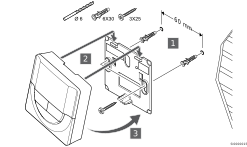
Attach the thermostat to the wall using the wall bracket, screws and wall plugs.
Screw and wall plug
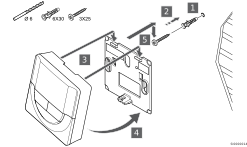
Attach the thermostat to the wall using the screw and wall plug.
Register thermostat to room controller
1. Enter registration mode
Press and hold the OK button on the room controller until the LED for channel 1 (or the first unregistered channel) flashes red.
2. Select a channel
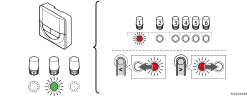
Use buttons < or > to move the pointer (LED flashes red) to a preferred channel.
3. Lock selected channel
|
Error |
It is recommended to register all channels to the thermostat at the same time. |
Press the OK button to select the channel for registration. The LED for the selected channel starts flashing green.
Select all channels to be registered to the thermostat and continue to the next step.
4. Register thermostat
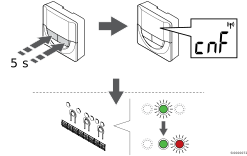
Press and hold both - and + buttons on the thermostat until the text CnF (configure) and a communication icon is displayed.
The selected channel LED in the room controller turns fixed green and the registration is complete.
5. Exit registration mode
Press and hold the OK button on the room controller until the green LEDs turn off to end registration and return to run mode.
To unregister already registered thermostats, see Unregister room controller channels.
Uponor Smatrix Base T-148
Placement of thermostat
Select an indoor wall and a position 1.3 m to 1.5 m above the floor.
Ensure that the thermostat is away from direct sunlight.
Ensure that the thermostat will not be heated through the wall by sunshine.
Ensure that the thermostat is away from any source of heat, for example television set, electronic equipment, fireplace, spotlights, and so on.
Ensure that the thermostat is away from any source of humidity and water splashes (IP20).
Label thermostat
Label the thermostat, where suitable, with the channel numbers they are to control, for example, #02, #03. For a system with several room controllers, add the ID of each room controller, for example, 1.02, 1.03, 2.02, 2.03.
If an external sensor is connected, add information about sensor type when applicable.
Available thermostat and sensor combinations:
Room temperature
Room and floor temperature
Room and outdoor temperature
Remote sensor temperature
Connect external sensor to thermostat
Insert the two wires from the sensor cable (non polarized) into the removable connector.
Tighten the screws fixing the wires in the connector.
Insert the connector on the input pegs on the thermostat.
|
Error |
For accurate temperature: attach the outdoor sensor to the north side of the building where it is unlikely to be exposed to direct sunlight. Do not place it close to doors, windows, or air outlets. |
The external temperature sensor input can be used for either a floor, outdoor or remote temperature sensor. Use the software on the thermostat to select a control mode which corresponds to the use of the sensor and thermostat.
Connect communication cable to thermostat
Insert the four wires into the removable connectors marked (A,B, + and -) on the thermostat.
Tighten the screws fixing the wires in the connector.
Insert the connectors on the input pegs on the thermostat.
|
Error |
|
The thermostat will power up when it is connected to the room controller, and the room controller is connected to AC power. When powered up the thermostat may require the time and date to be set. This setting can be accessed later in thermostat settings. |
Set time and date
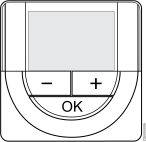
|
Error |
If no button on the thermostat is pressed for about 8 seconds, while in a submenu, the current values will be saved and the software exits to the settings menu. About about 60 seconds later, it exits to run mode. |
At first startup, after a factory reset, or after its been disconnected too long, the software requires the time and date to be set. This setting is required to utilise scheduling programs for this thermostat.
Use buttons - or + to change the value, press the OK button to set the value and move to the next editable value.
Date and time can also be set later in the settings menu.
1. Set hours
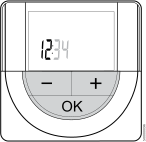
Use buttons - or + to change the value, press the OK button to set the value and move to the next editable value.
2. Set minutes
Use buttons - or + to change the value, press the OK button to set the value and move to the next editable value.
3. Set 12H/24H time format
Set 12h or 24h time format.
Use buttons - or + to change the value, press the OK button to set the value and move to the next editable value.
4. Set weekday
Set weekday (1 = Monday, 7 = Sunday).
Use buttons - or + to change the value, press the OK button to set the value and move to the next editable value.
5. Set day of the month
Use buttons - or + to change the value, press the OK button to set the value and move to the next editable value.
6. Set month
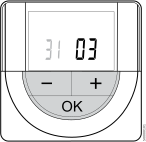
Use buttons - or + to change the value, press the OK button to set the value and move to the next editable value.
7. Set year
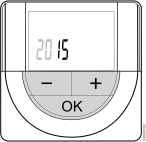
Use buttons - or + to change the value, press the OK button to set the value and move to the next editable value.
Select thermostat control mode
|
Error, enter correct language code |
|
The thermostat control mode must be set before the thermostat is registered to the room controller. Later changes to this setting requires the thermostat to be registered again. |
|
Error |
If no button on the thermostat is pressed for about 8 seconds, while in a submenu, the current values will be saved and the software exits to the settings menu. About about 60 seconds later, it exits to run mode. |
If an external sensor is connected to the thermostat, a control mode must be selected to accommodate the extra functionality of the sensor.
See 04 Control mode, for how to change the setting.
Attach thermostat to the wall
The thermostat is delivered in a kit with screws, wall plugs, and a wall bracket, presenting several options of attaching the thermostat to the wall.
Wall bracket (recommended)
Attach the thermostat to the wall using the wall bracket, screws and wall plugs.
Screw and wall plug
Attach the thermostat to the wall using the screw and wall plug.
Register thermostat to room controller
1. Enter registration mode
Press and hold the OK button on the room controller until the LED for channel 1 (or the first unregistered channel) flashes red.
2. Select a channel
Use buttons < or > to move the pointer (LED flashes red) to a preferred channel.
3. Lock selected channel
|
Error |
It is recommended to register all channels to the thermostat at the same time. |
Press the OK button to select the channel for registration. The LED for the selected channel starts flashing green.
Select all channels to be registered to the thermostat and continue to the next step.
4. Register thermostat
Press and hold both - and + buttons on the thermostat until the text CnF (configure) and a communication icon is displayed.
The selected channel LED in the room controller turns fixed green and the registration is complete.
5. Exit registration mode
Press and hold the OK button on the room controller until the green LEDs turn off to end registration and return to run mode.
To unregister already registered thermostats, see Unregister room controller channels.
Uponor Smatrix Base T-149
Placement of thermostat
Select an indoor wall and a position 1.3 m to 1.5 m above the floor.
Ensure that the thermostat is away from direct sunlight.
Ensure that the thermostat will not be heated through the wall by sunshine.
Ensure that the thermostat is away from any source of heat, for example television set, electronic equipment, fireplace, spotlights, and so on.
Ensure that the thermostat is away from any source of humidity and water splashes (IP20).
Label thermostat
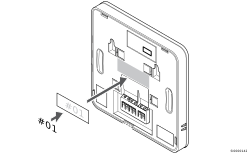
Label the thermostat, where suitable, with the channel numbers they are to control, for example, #02, #03. For a system with several room controllers, add the ID of each room controller, for example, 1.02, 1.03, 2.02, 2.03.
If an external sensor is connected, add information about sensor type when applicable.
Available thermostat and sensor combinations:
Room temperature
Room and floor temperature
Room and outdoor temperature
Remote sensor temperature
Connect external sensor to thermostat
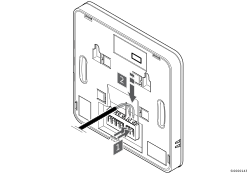
Press the push buttons on the connection terminals.
While pressing the push buttons, insert the two wires from the sensor cable (non polarized) into the connection terminal.
|
Error |
For accurate temperature: attach the outdoor sensor to the north side of the building where it is unlikely to be exposed to direct sunlight. Do not place it close to doors, windows, or air outlets. |
The external temperature sensor input can be used for either a floor, outdoor or remote temperature sensor. Use the software on the thermostat to select a control mode which corresponds to the use of the sensor and thermostat.
Connect communication cable to thermostat
Press the push buttons on the connection terminal on the back of the thermostat.
While pressing the push buttons, insert each of the four wires into the connection terminal on the thermostat (marked A,B, + or -).
Select thermostat control mode
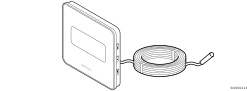
|
Error, enter correct language code |
|
The thermostat control mode must be set before the thermostat is registered to the room controller. Later changes to this setting requires the thermostat to be registered again. |
|
Error |
If no button on the thermostat is pressed for about 8 seconds, while in a submenu, the current values will be saved and the software exits to the settings menu. About about 60 seconds later, it exits to run mode. |
If an external sensor is connected to the thermostat, a control mode must be selected to accommodate the extra functionality of the sensor.
See 04 Control mode, for how to change the setting.
Attach thermostat to the wall
The thermostat is delivered in a kit with screws, wall plugs, and a wall bracket, presenting several options of attaching the thermostat to the wall.
Wall bracket (recommended)
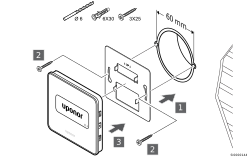
Attach the thermostat to the wall using the wall bracket, screws and wall plugs.
|
Error, enter correct language code |
Do not overtighten the screws for the wall bracket. It may cause the metal to distort. |
Using wall brackcket and surface adaptor (optional)
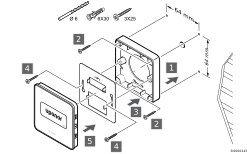
Attach the thermostat to the wall using the wall bracket, optional surface adaptor, screws and wall plugs.
|
Error, enter correct language code |
Do not overtighten the screws for the wall bracket. It may cause the metal to distort. |
Screw and wall plug
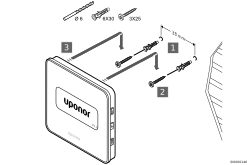
Attach the thermostat to the wall using the screw and wall plug.
Register thermostat to room controller
1. Enter registration mode
Press and hold the OK button on the room controller until the LED for channel 1 (or the first unregistered channel) flashes red.
2. Select a channel
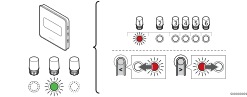
Use buttons < or > to move the pointer (LED flashes red) to a preferred channel.
3. Lock selected channel
|
Error |
It is recommended to register all channels to the thermostat at the same time. |
Press the OK button to select the channel for registration. The LED for the selected channel starts flashing green.
Select all channels to be registered to the thermostat and continue to the next step.
4. Register thermostat
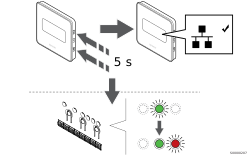
Press and hold both and buttons on the thermostat until the text CnF (configure) and a communication icon is displayed.
The selected channel LED in the room controller turns fixed green and the registration is complete.
5. Exit registration mode
Press and hold the OK button on the room controller until the green LEDs turn off to end registration and return to run mode.
To unregister already registered thermostats, see Unregister room controller channels.
Install Uponor Smatrix Base room thermostat as system device
Uponor Smatrix Base T-143
Placement of thermostat
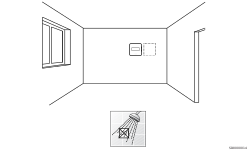
Ensure that the thermostat is away from any source of humidity and water splashes (IP20).
Label thermostat
Label the thermostat, where suitable, with the channel numbers they are to control, for example, #S02, #S03.
If an external sensor, or input signal, is connected, add information about sensor type when applicable.
Available thermostat and sensor/input signal combinations:
Outdoor temperature
Supply temperature sensor for heating/cooling switch-over function
Comfort/ECO switch-over function
Heating/cooling switch-over function
Connect external sensor, or input signal, to thermostat
Insert the two wires from the sensor cable/input (non polarized) into the removable connector.
Tighten the screws fixing the wires in the connector.
Insert the connector on the input pegs on the thermostat.
|
Error |
For accurate temperature: attach the outdoor sensor to the north side of the building where it is unlikely to be exposed to direct sunlight. Do not place it close to doors, windows, or air outlets. |
When used as a system device the external sensor terminal is used to connect an outdoor temperature sensor, a supply temperature sensor for heating/cooling switch (requires a communication module), a heating cooling switch, or a Comfort/ECO switch. Use the DIP switches on the thermostat to select function mode.
DIP switch
|
Error, enter correct language code |
If more than one room controller is available in the system, register the thermostat as a system device to the master room controller. |
|
Error, enter correct language code |
The DIP switch in the thermostat must be set before it is registered. |
|
Error, enter correct language code |
The switches must be set to one of the available functions, otherwise the thermostat cannot be registered. |
|
Error |
When registering the thermostat as a system device, it will no longer work as a standard room thermostat. |
|
Error |
The external signal can be connected to up to four room controllers, working in parallel. Reducing the number of heating/cooling switches needed in the system. |
|
Error |
|
Use only one Comfort/ECO switch in the system.
|
Set the DIP switch according to the function of the thermostat.
Thermostat function |
Switch |
|---|---|
Outdoor temperature sensor |
|
Supply temperature sensor for heating/cooling switch-over function (requires communication module) |
 |
Sensor input for Comfort/ECO switch-over function (input closed = ECO mode) |
 |
Connect communication cable to thermostat
Insert the four wires into the removable connectors marked (A,B, + and -) on the thermostat.
Tighten the screws fixing the wires in the connector.
Insert the connectors on the input pegs on the thermostat.
Attach thermostat to the wall
The thermostat is delivered in a kit with screws, wall plugs, and a wall bracket, presenting several options of attaching the thermostat to the wall.
Wall bracket (recommended)
Attach the thermostat to the wall using the wall bracket, screws and wall plugs.
Screw and wall plug
Attach the thermostat to the wall using the screw and wall plug.
Register thermostat to room controller
1. Enter registration mode
Press and hold the OK button on the room controller until the LED for channel 1 (or the first unregistered channel) flashes red.
|
Error, enter correct language code |
The DIP switch in the thermostat must be set before it is registered. |
|
Error, enter correct language code |
If more than one room controller is available in the system, register the thermostat as a system device to the master room controller. |
|
Error |
It is recommended to register at least one room thermostat before registering a system device. |
|
Error |
If registering a public thermostat as a system device with various functions, the thermostat only acts as a remote unit. It does not control the room temperature in the room where it is placed. |
2. Move the channel pointer to the power LED
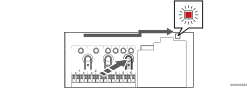
Use buttons < or > to move the pointer to the power LED (LED flashes red).
3. Enter system device registration mode
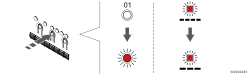
Press the OK button to enter system device registration mode (power LED). The power LED starts flashing according to the pattern long blink, short pause, long blink. Channel 1 starts flashing red.
4. Select a channel
Use buttons < or > to move the pointer (LED flashes red) to a preferred channel.
Channel
4Public thermostat with heating/cooling switch from sensor input (requires communication module).
5Public thermostat with Comfort/ECO switch from contact.This option disables the Comfort/ECO option in the GPI.
5. Lock selected channel
Press the OK button to select the channel for registration. The LED for the selected channel starts flashing green.
6. Register thermostat
Gently press and hold the registration button on the thermostat, release when the LED starts flashing green (located in the hole above the registration button).
The selected channel LED in the room controller turns fixed green and the registration is complete.
7. Exit registration mode
Press and hold the OK button on the room controller until the green LEDs turn off to end registration and return to run mode.
To unregister already registered thermostats, see Unregister room controller channels.
Install another Uponor Smatrix room controller in the system
Preparation
|
Error |
The room controller will time out after about 10 minutes of inactivity and revert to normal operation. The timer will be reset when a button is pressed or if a device has been registered to it. |
|
Error |
Sub room controllers can only be registered to the master room controller. |
|
Error |
|
If a room controller previously connected to a communication module is to be used as a sub room controller (or in a system without a communication module), restore it to sub room controller state by factory reset. Existing sub room controllers in the system must then either, reset system device channel 01, or register to another master room controller. |
Multiple Uponor Smatrix room controllers can be linked together by assigning one room controller to be master and the rest to be sub room controllers.
The master room controller is assigned by connecting it to the communication module (only one room controller can be master in the system), and it can control up to three sub room controllers. Sub room controllers are assigned when registered (in order) to the master room controller.
Ensure that all room controllers are powered and that at least one thermostat is registered to each one.
Ensure access to all room controllers before starting the registration process.
Assign master/sub roles to the room controllers by connecting the communication module to the master room controller.
Ensure the sub room controllers are placed witin radio range of the master room controller.
Connect another room controller
|
Error, enter correct language code |
Make sure the room controller is connected to a system bus connector (one of the rightmost connectors) on the room controller. Otherwise the room controllers will be unable to communicate with each other. |
|
Error |
Up to four Uponor Smatrix room controllers can be connected in the same system. |
Uponor Smatrix room controllers can be connected to each other using daisy chain, direct connection, or using star topology (the star module can be used). A star module can only be used for one bus type at a time. That is, a thermostat cannot be connected to a star module connected to the system bus and vice versa.
Daisy chain connection
The thermostats in the example are connected in series and only one cable needs to be routed from the room controller and slave module (if available).
This method reduces the total length of cable needed in the system.
Direct connection to room controller and slave module
Every thermostat in the example is connected to the room controller and slave module (if available) with its own cable.
Connection to attached star module
The star module is attached to the room controller and slave module (if available) adding extra connection terminals to the system. Each thermostat in the example is connected direct to the room controller, slave module (if available) and star module.
Connection to cable connected star module
The star module is connected to the room controller and/or slave module (if available) with a cable, using two of the extra connection points. Each thermostat in the example is connected direct to the star module, except one that is connected with daisy chain.
Connect communication cable
Connect the communication cable to either the room controller, slave module, and/or star module.
Connect communication cable to room controller system bus
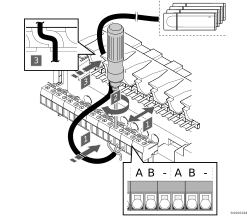
|
Error, enter correct language code |
Make sure the room controller is connected to a system bus connector (one of the rightmost connectors) on the room controller. Otherwise the room controllers will be unable to communicate with each other. |
Lead the cables through cable entries on the top of the room controller frame.
Insert two wires (A,B), the - wire is optional and only used in some cases, into a free system connector (one of the rightmost connectors) on the room controller.
Tighten the screws fixing the wires in the connector.
Cut and stow away unused wires.
Register sub room controller to master room controller
|
Error |
The room controller will time out after about 10 minutes of inactivity and revert to normal operation. The timer will be reset when a button is pressed or if a device has been registered to it. |
|
Error |
Sub room controllers can only be registered to the master room controller. |
1. Enter registration mode on the master room controller
Press and hold the OK button on the room controller until the LED for channel 1 (or the first unregistered channel) flashes red.
|
Error |
It is recommended to register at least one room thermostat before registering a system device. |
2. Move the channel pointer to the power LED
Use buttons < or > to move the pointer to the power LED (LED flashes red).
3. Enter system device registration mode
Press the OK button to enter system device registration mode (power LED). The power LED starts flashing according to the pattern long blink, short pause, long blink. Channel 1 starts flashing red.
4. Select channel 1
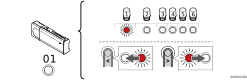
Use buttons < or > to move the pointer (LED flashes red) to channel 1.
5. Lock selected channel
Press the OK button to select the channel for registration. The LED for the selected channel starts flashing green.
6. Locate sub room controller
|
Error |
The room controller will time out after about 10 minutes of inactivity and revert to normal operation. The timer will be reset when a button is pressed or if a device has been registered to it. |
Locate the sub room controller and lock channel 1 in system device registration mode (see steps 1 through 5).
7. Register sub room controller
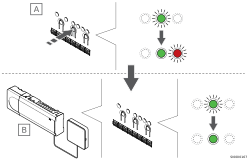
|
Error |
The room controller will time out after about 10 minutes of inactivity and revert to normal operation. The timer will be reset when a button is pressed or if a device has been registered to it. |
Press the OK button on the sub room controller (A).
Channel 1 LED on both the master (B) and sub (A) room controllers turns fixed green and the registration is complete.
The next sub room controller can be registered within 10 minutes, without the need to activate channel 1 on the master room controller again. But if registration feedback from the master room controller is requested, the full process can start from the beginning again without overwriting the first sub room controller registration.
8. Exit registration mode
Press and hold the OK button on the room controller until the green LEDs turn off to end registration and return to run mode.
To unregister already registered sub room controller, see Unregister room controller channels.
Finishing installation
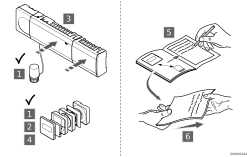
Make a complete check up of the installation:
Check that the thermostats are working correctly. Turn thermostat setpoints to maximum to obtain a heating demand and make sure that the actuators are running.
Set thermostats to the defined operating settings.
Close the covers of the room controller.
Attach thermostats to the wall.
Print and fill in the “Installation report” (separate downloadable document).
Give the printed manuals and all information about the system to the user.
Operate Uponor Smatrix Base Pulse room controller
Principle of operation
The room controller operates the underfloor heating/cooling system according to customer needs. Temperatures can be adjusted with thermostats located in each room, or if installed with the Uponor Smatrix Pulse app (requires communication module).
As soon as the temperature measured at a thermostat is lower (heating mode) or higher (cooling mode) than the setpoint temperature, a demand to change the room temperature is created and sent to the room controller. The room controller will open the actuators according to current operating mode and other settings. Once the set temperature is reached, this information is sent and the actuators are closed.
The system supports different types of cooling methods and is setup in the Uponor Smatrix Pulse app.
Available cooling methods in the Uponor Smatrix Pulse app.
-
Underfloor cooling (UC)
Cooling in the system is achieved using underfloor loops.
-
Ceiling cooling (CC)
Cooling in the system is achieved using ceiling cooling (2-pipe or 4-pipe system).
Select if the system utilizes a 2-pipe or 4-pipe delivery solution for heating/cooling.
-
2-pipe means one supply temperature to the system at a time (heating or cooling).
Autoblancing disabled:In rooms where underfloor heating/cooling is allowed. Underfloor cooling and ceiling cooling is both started when the room termperature is about 1 degree below setpoint.
Autobalancing enabled: Ceiling cooling and underfloor cooling will follow the current cooling demand.
-
4-pipe means separate independent heating/cooling sources.
In heating mode:
The underfloor loops are used when there is a heating demand.
In cooling mode:
Underfloor loops and ceiling cooling are used at the same time when there is a cooling demand.
-
See Uponor Smatrix Pulse app for more information about the individual functions.
Normal operation without optional scheduling programs
When the system is running in normal mode:
In Heating mode, the actuators are open when room temperatures are lower than the temperatures set on the thermostats.
-
In Cooling mode, the actuators are open when room temperatures are higher than the temperatures set on the thermostats.
See Uponor Smatrix Pulse app for more information about different cooling configurations.
For more information see, Operate Uponor Smatrix Base thermostats.
Operation with scheduling programs
Scheduling programs provide an option to switch selected rooms between Comfort and ECO mode using a 7-day program. This optimises the installation and conserves energy.
The use of scheduling programs requires at least one of:
Uponor Smatrix Base T-148 (programmable thermostat)
Uponor Smatrix Pulse R-208 (required for mobile app access)
For more information see, Operate Uponor Smatrix Base thermostats.
For more information see, Operate Uponor Smatrix Pulse communication module.
Run mode
During normal operation the room controller is in run mode.
Exit to run mode
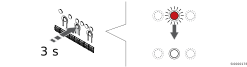
If the room controller is in registration or forced mode, exit to run mode by pressing the OK button until the LEDs turn off (about 3 seconds).
Room controller LEDs
If the Uponor Smatrix Pulse app (requires communication module) is not used, it is recommended to occasionally check the power LED on the room controller for alarms. The power LED flashes continuously for general alarms. Determine which thermostats are issuing alarms by removing the cover. If a channel LED is indicating an error, check the function of the registered thermostat.
The room controller power LED is on (green) during normal operation.
All the channel LEDs are off when there is no current or waiting actuator activity. The LEDs turn on when the corresponding actuators are activated or start flashing when they are awaiting activation.
Up to eight actuators in six rooms can be in the opening process at the same time. If a slave module is installed, the LEDs of the seventh and subsequent actuators flash while they are waiting for the previous actuators to be fully open.
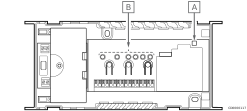
Item |
Description |
|---|---|
A |
Power LED |
B |
Channel LEDs |
Run mode
Power LED |
Status |
|---|---|
Green, fixed |
Room controller is powered on |
Red, flashing |
A problem has occurred, such as
|
Channel LED |
Status |
|---|---|
Red, fixed |
Activated actuator |
Red, flashing |
|
Off |
No heating, or cooling, demand |
Registration mode
Power LED |
Status |
|---|---|
Red, fixed |
Room controller is in thermostat registration mode |
Red, flashing |
Selector pointing at system device channel |
Red, flashing slowly |
Room controller is in system device registration mode |
Channel LED |
Status |
|---|---|
Red, fixed |
Thermostat registered but with communication errors |
Green, fixed |
Thermostat registered and communication is OK |
Red, flashing |
Selector pointing at channel |
Green, flashing |
Channel selected to be registered |
Off |
Selector not pointing at channel, nor registered |
Forced mode
Channel LED |
Status |
|---|---|
Red, fixed |
Activated actuator |
Red, flashing |
Selector pointing at channel |
Off |
Selector not pointing at channel, nor activated |
Reset the controller
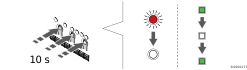
|
Error |
Make sure the room controller is in run mode. If it is in registration or forced mode, press and hold the OK button for about 5 seconds or until the LEDs turn off. |
|
Error |
Resetting the room controller removes all registration information and settings from the room controller. Registration of thermostats and system devices are once again required. |
|
Error |
|
If a room controller previously connected to a communication module is to be used as a sub room controller (or in a system without a communication module), restore it to sub room controller state by factory reset. Existing sub room controllers in the system must then either, reset system device channel 01, or register to another master room controller. |
|
Error |
If resetting a sub room controller, all remaining sub room controllers must be unregistered from the master room controller (system device channel 1). Register the remaining sub room controllers to the master room controller again when finished. |
If problems, such as incorrect channel registration exist, reset the room controller.
To reset the room controller:
Press the <, OK, and > buttons simultaneously (for about 10 seconds) until the power LED flashes, and all channel LEDs turn off. All parameters are erased and run mode has been activated.
Unregister room controller channels
|
Error |
Make sure the room controller is in run mode. If it is in registration or forced mode, press and hold the OK button for about 5 seconds or until the LEDs turn off. |
When a channel is inaccurately registered or if a thermostat registration needs to be redone, it is possible to remove the current registration from the room controller.
Unregister a room controller channel
1. Enter registration mode
Press and hold the OK button on the room controller until the LED for channel 1 (or the first unregistered channel) flashes red.
2. Select a channel
Use buttons < or > to move the pointer (LED flashes red) to the channel to unregister (solid green LED).
3. Unregister the channel
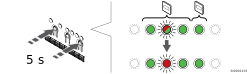
Press the < and > buttons simultaneously until the LED for the selected channel starts flashing red (about 5 seconds).
4. Exit registration mode
Press and hold the OK button on the room controller until the green LEDs turn off to end registration and return to run mode.
Unregister a system device channel
1. Enter registration mode
Press and hold the OK button on the room controller until the LED for channel 1 (or the first unregistered channel) flashes red.
2. Move the channel pointer to the power LED
Use buttons < or > to move the pointer to the power LED (LED flashes red).
3. Enter system device registration mode
Press the OK button to enter system device registration mode (power LED). The power LED starts flashing according to the pattern long blink, short pause, long blink. Channel 1 starts flashing red.
4. Select a channel
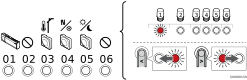
|
Error |
If unregistering system device channel 1 from a sub room controller, all remaining sub room controllers must be unregistered from the master room controller (system device channel 1). Register the remaining sub room controllers to the master room controller again when finished. |
Use buttons < or > to move the pointer (LED flashes red) to the channel to unregister (solid green LED).
Channel
2Not used
3Public thermostat with outdoor sensor.
4Public thermostat with heating/cooling switch from sensor input (requires communication module).
5Public thermostat with Comfort/ECO switch from contact.
6Not used
5. Unregister the channel
Press the < and > buttons simultaneously until the LED for the selected channel starts flashing red (about 5 seconds).
6. Exit registration mode
Press and hold the OK button on the room controller until the green LEDs turn off to end registration and return to run mode.
Unregister all room controller channels
1. Enter registration mode
Press and hold the OK button on the room controller until the LED for channel 1 (or the first unregistered channel) flashes red.
2. Unregister all channels
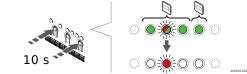
Press the < and > buttons simultaneously until the LEDs for all channels except one turn off (about 10 seconds). The one remaining flashes red.
3. Exit registration mode
Press and hold the OK button on the room controller until the green LEDs turn off to end registration and return to run mode.
Update room controller software (optional)
The room controller software can be updated using the Uponor Smatrix Pulse app (requires communication module and connection to Uponor cloud services).
Operate Uponor Smatrix Pulse communication module
Communication module layout
The illustration below shows the parts of the thermostat.
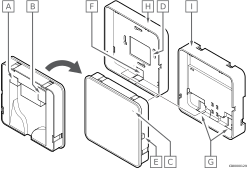
Item |
Description |
|---|---|
A |
Communication connector (between communication module and room controller) |
B |
Ethernet RJ45 connector |
C |
Function LED |
D |
Back hole cable entry |
E |
Operating button |
F |
Breakout plastic, for cable entry |
G |
Cable entries |
H |
Standard back mount |
I |
DIN-rail back mount |
Communication module LEDs
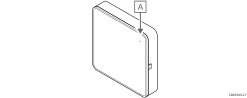
Item |
Description |
|---|---|
A |
Function LED |
LED |
Status |
|---|---|
Green, fixed |
Communication module is powered on and connected to Uponor cloud services. |
Orange, fixed |
Communication module is powered on and connected to LAN (using Wi-Fi or ethernet), not connected to Uponor cloud services. |
Orange, flashing |
Communication module is powered on and a local temporary Wi-Fi access point mode is activated. |
Red, fixed |
Communication module is powered on and but not connected to LAN (using Wi-Fi or ethernet) or communication module access point. |
Factory reset the communication module
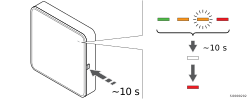
|
Error |
This function does not affect room controller and thermostat related settings. |
This function resets the communication module to factory settings, and is mostly used when transferring the system to a new owner.
To factory reset the communication module:
Press the operating button (for about 10 seconds) until the function LED turns off.
Release the button and the communication module reboots to factory settings.
When the LED lights up red, unplug and plug in the room controller to send installation data to the communication module.
Reset connection settings in the Uponor Smatrix Pulse app and reconnect to the communication module using the installation wizard.
Operate Uponor Smatrix Base thermostats
Thermostat type
Two types of thermostats, both analogue and digital, can be used in an Uponor Smatrix Base system.
Analogue thermostats
 |
Uponor Smatrix Base T‑141 |
 |
Uponor Smatrix Base T‑143 |
 |
Uponor Smatrix Base T-144 |
 |
Uponor Smatrix Base T-145 |
The analogue thermostats are controlled by either turning a dial (T-144 or T-145), adjusting a potentiometer on its back (T-143), or via the Uponor Smatrix Pulse app (requires communication module).
Digital thermostats
 |
Uponor Smatrix Base T‑146 |
Uponor Smatrix Base T‑148 | |
 |
Uponor Smatrix Base T-149 |
The digital thermostats have a display relaying information to the user and buttons for control.
Thermostat layout
Uponor Smatrix Base T-141
During normal operation the thermostat is monitored and controlled via the Uponor Smatrix Pulse app (requires communication module).
The illustration below shows the parts of the thermostat.
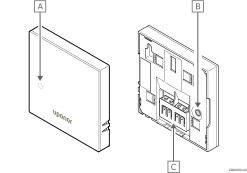
Item |
Description |
|---|---|
A |
Heating/cooling demand LED |
B |
Registration button |
C |
Terminal for communication cable |
Uponor Smatrix Base T-143
During normal operation a discreet LED on the back of the thermostat is lit for about 60 seconds if there is a demand for heating or cooling.
The thermostat contains a switch that, if activated during registration, sends an alarm when the thermostat is removed from the wall. The alarm is transmitted by radio, causing the related channel LEDs on the room controller to flash.
The illustration below shows the parts of the thermostat.
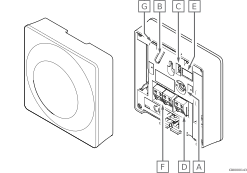
Item |
Description |
|---|---|
A |
Setpoint temperature potentiometer |
B |
Registration button |
C |
Disable timer switch |
D |
Terminal for external sensor (non-polarised) |
E |
Configuration DIP switches |
F |
Terminal for communication cable |
G |
Heating/cooling demand LED |
Uponor Smatrix Base T-144
The illustration below shows the parts of the thermostat.
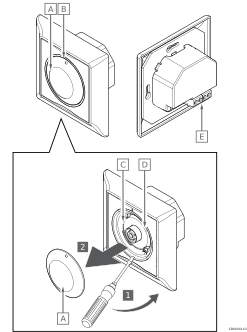
Item |
Description |
|---|---|
A |
Room temperature setpoint dial control |
B |
Heating/cooling demand LED |
C |
Registration button |
D |
Disable timer switch |
E |
Terminal for communication cable |
Uponor Smatrix Base T-145
During normal operation a discreet LED on the thermostat is lit for about 60 seconds if there is a demand for heating or cooling.
The illustration below shows the parts of the thermostat.
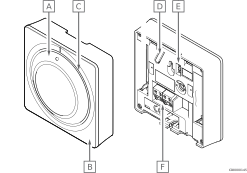
Item |
Description |
|---|---|
A |
Room temperature setpoint dial control |
B |
Heating/cooling demand LED |
C |
Clear dial guide |
D |
Registration button |
E |
Disable timer switch |
F |
Terminal for communication cable |
Uponor Smatrix Base T-146
The illustration below shows the parts of the thermostat.
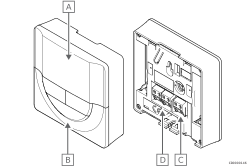
Item |
Description |
|---|---|
A |
Display |
B |
Buttons |
C |
Terminal for external sensor (non-polarised) |
D |
Terminal for communication cable |
Display layout
The figure shows all possible symbols and characters that can be shown on the display:
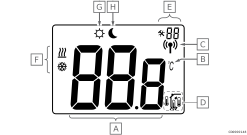
Item |
Icon |
Description |
|---|---|---|
A |
 |
Message field using three alphanumerical characters |
 |
Temperature reading using a - or + sign, two digital characters, a decimal point and a character showing either 0 or 5 |
|
B |
 |
Temperature unit, shown when the character group A shows a temperature |
 | ||
C |
 |
Communication indicator |
D |
 |
Indoor temperature indicator Remote sensor temperature indicator (RS mode) The text Err and a flashing sensor icon indicates a faulty sensor |
 |
Indoor temperature with floor temperature limitation indicator The text Err and a flashing floor sensor icon indicates a faulty sensor |
|
 |
Floor temperature indicator The text Err and a flashing floor sensor icon indicates a faulty sensor |
|
 |
Outdoor temperature indicator The text Err and a flashing outdoor sensor icon indicates a faulty sensor |
|
E |
 |
Settings menu |
 |
Settings menu number |
|
F |
 |
Heating demand |
 |
Cooling demand |
|
G |
 |
Comfort mode |
H |
 |
ECO mode |
Button layout
The figure below shows buttons used to operate the digital thermostats.
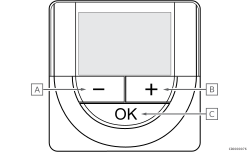
Item |
Description |
|---|---|
A |
The - and + buttons are used to:
|
B | |
C |
The OK button is used to:
|
Uponor Smatrix Base T-148
The illustration below shows the parts of the thermostat.
Item |
Description |
|---|---|
A |
Display |
B |
Buttons |
C |
Terminal for external sensor (non-polarised) |
D |
Terminal for communication cable |
Display layout
The figure shows all possible symbols and characters that can be shown on the display:
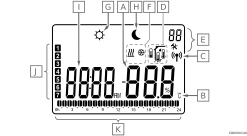
Item |
Icon |
Description |
|---|---|---|
A |
 |
Temperature reading using a - or + sign, two digital characters, a decimal point and a character showing either 0 or 5 |
 |
Relative humidity reading using two digital characters. Indicated with a “%” character |
|
B |
|
Temperature unit, shown when the character group A shows a temperature |
| ||
C |
|
Communication indicator |
D |
|
Indoor temperature indicator Remote sensor temperature indicator (RS mode) The text Err and a flashing sensor icon indicates a faulty sensor |
|
Indoor temperature with floor temperature limitation indicator The text Err and a flashing floor sensor icon indicates a faulty sensor |
|
|
Floor temperature indicator The text Err and a flashing floor sensor icon indicates a faulty sensor |
|
|
Outdoor temperature indicator The text Err and a flashing outdoor sensor icon indicates a faulty sensor |
|
 |
Relative humidity limit reached (high limit) This symbol is only shown if cooling is active, and if RH control is be activated in Uponor Smatrix Pulse app (requires communication module). |
|
E |
|
Settings menu |
|
Settings menu number |
|
F |
|
Heating demand |
|
Cooling demand |
|
G |
|
Comfort mode |
H |
|
ECO mode |
I |
 |
Digital clock |
 |
Parameter name in settings menu |
|
 |
Indicator showing AM or PM when the thermostat is set to 12 h mode |
|
 | ||
No indication when the thermostat is set to 24 h mode |
||
J |
 |
Weekday selected/activated 1 = Monday 7 = Sunday |
K |
 |
Time selected or scheduled hour indicators, for Comfort mode, between 0:00 and 24:00 Half = 30 minutes Full = 1 hour |
Button layout
The figure below shows buttons used to operate the digital thermostats.
Item |
Description |
|---|---|
A |
The - and + buttons are used to:
|
B | |
C |
The OK button is used to:
|
Uponor Smatrix Base T-149
The illustration below shows the parts of the thermostat.
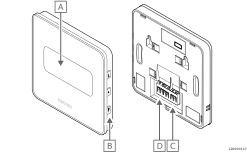
Item |
Description |
|---|---|
A |
Display |
B |
Buttons |
C |
Terminal for external sensor (non-polarised) |
D |
Terminal for communication cable |
Display layout
Run mode (default screen)
The figure shows all possible symbols and characters that can be shown on the display:
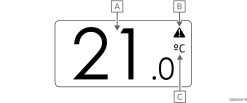
Item |
Icon |
Description |
|---|---|---|
A |
 |
Temperature reading using a - or + sign, two digital characters, a decimal point and a character showing either 0 or 5 |
B |
 |
Alarm symbol |
C |
 |
Temperature unit |
 |
Change setpoint
The figure shows all possible symbols and characters that can be shown on the display:
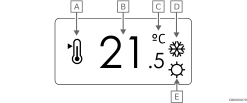
Item |
Icon |
Description |
|---|---|---|
A |
 |
Change setpoint mode |
B |
 |
Temperature setpoint, using a - or + sign, two digital characters, a decimal point and a character showing either 0 or 5 |
C |
|
Temperature unit |
| ||
D |
|
Heating demand |
|
Cooling demand |
|
E |
|
Comfort mode |
|
ECO mode |
Alarms
The figure shows all possible symbols and characters that can be shown on the display:
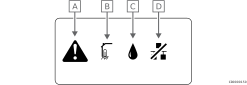
Item |
Icon |
Description |
|---|---|---|
A |
|
Alarm mode |
B |
 |
Faulty indoor temperature sensor |
 |
Faulty floor temperature sensor |
|
 |
Faulty remote temperature sensor |
|
 |
Faulty outdoor temperature sensor |
|
C |
 |
Relative humidity limit reached (high limit) This symbol is only shown if cooling is active, and if RH control is be activated in Uponor Smatrix Pulse app (requires communication module). |
D |
 |
Communication fault indicator |
Control mode
The figure shows all possible symbols and characters that can be shown on the display:
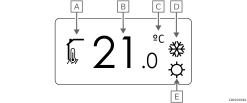
Item |
Icon |
Description |
|---|---|---|
A |
|
Current control mode Indoor temperature indicator |
 |
Current control mode Indoor temperature with floor temperature limitation indicator |
|
|
Current control mode Remote sensor temperature indicator |
|
 |
Current control mode Outdoor temperature indicator |
|
B |
|
Temperature unit, shown when the character group A shows a temperature |
C |
|
Temperature unit |
| ||
D |
|
Heating demand |
|
Cooling demand |
|
E |
|
Comfort mode |
|
ECO mode |
Relative humidity
The figure shows all possible symbols and characters that can be shown on the display:
Item |
Icon |
Description |
|---|---|---|
A |
|
Relative humidity level |
B |
 |
Relative humidity reading using two digital characters. Indicated with a “%” character |
Button layout
The figure below shows buttons used to operate the digital thermostats.
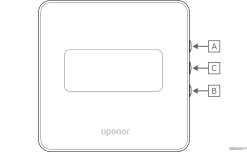
Item |
Description |
|---|---|
A |
The
|
B | |
C |
The OK button is used to:
|
Start up
Analogue thermostats
The thermostat will perform a self test, for about 10 seconds, when starting up. The system will be blocked for input and the thermostat LED flashes during this period.
Digital thermostats
When starting up, the software version is shown in the display for about three seconds. Then the thermostat enters run mode (except the programmable thermostat which may require the time and date to be set).
Software version
T-146

Current software version is displayed during power up.
T-148

Current software version is displayed during power up.
T-149

Current software version is displayed during power up.
Set time and date (T-148 only)
|
Error |
If no button on the thermostat is pressed for about 8 seconds, while in a submenu, the current values will be saved and the software exits to the settings menu. About about 60 seconds later, it exits to run mode. |
At first startup, after a factory reset, or after its been disconnected too long, the software requires the time and date to be set. This setting is required to utilise scheduling programs for this thermostat.
Use buttons - or + to change the value, press the OK button to set the value and move to the next editable value.
Date and time can also be set later in the settings menu.
1. Set hours
Use buttons - or + to change the value, press the OK button to set the value and move to the next editable value.
2. Set minutes
Use buttons - or + to change the value, press the OK button to set the value and move to the next editable value.
3. Set 12H/24H time format
Set 12h or 24h time format.
Use buttons - or + to change the value, press the OK button to set the value and move to the next editable value.
4. Set weekday
Set weekday (1 = Monday, 7 = Sunday).
Use buttons - or + to change the value, press the OK button to set the value and move to the next editable value.
5. Set day of the month
Use buttons - or + to change the value, press the OK button to set the value and move to the next editable value.
6. Set month
Use buttons - or + to change the value, press the OK button to set the value and move to the next editable value.
7. Set year
Use buttons - or + to change the value, press the OK button to set the value and move to the next editable value.
Adjust temterature
The temperature is changed by adjusting the setpoint on the thermostat to a value between 5 and 35 ˚C. It is possible to set minimum and maximum temperature limits using the Uponor Smatrix Pulse app (requires communication module).
Uponor Smatrix Base T-141
The setpoint for the thermostat can only be changed via the Uponor Smatrix Pulse app (requires communication module). Otherwise the setpoint will be fixed to 21 ˚C.
Uponor Smatrix Base T-143
To change the thermostat temperature setpoint:
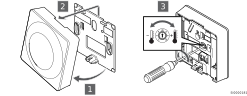
Angle the thermostat from the bracket.
Remove it from the wall.
Set the desired temperature using the potentiometer.
Put the thermostat back on the wall.
Uponor Smatrix Base T-144
Use the dial on the thermostat to adjust the temperature. A LED will light up when twisting the dial. It shuts off after about 10 seconds of inactivity.
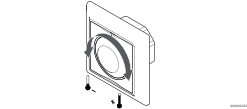
To adjust the thermostat temperature setpoint:
Twist the dial clockwise for a higher temperature.
Twist the dial counter-clockwise for a lower temperature.
Uponor Smatrix Base T-145
Use the dial on the thermostat to adjust the temperature. A backlight will light up when twisting the dial. It shuts off after about 10 seconds of inactivity.
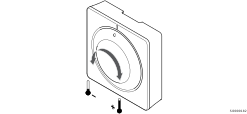
To adjust the thermostat temperature setpoint:
Twist the dial clockwise for a higher temperature.
Twist the dial counter-clockwise for a lower temperature.
Uponor Smatrix Base T-146
Use the buttons on the thermostat to adjust the temperature. The display will light up when pushing a button. It shuts off after about 10 seconds of inactivity.
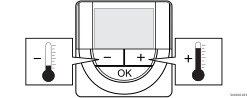

To adjust the thermostat temperature setpoint of the current control mode:
-
Press the - or + button once.
The screen shows the current setpoint flashing.
-
Press the - or + button repeatedly to adjust the setpoint temperature. It will change with increments of 0.5.
When the new setpoint is set, the screen returns to run mode after a few seconds, showing the room temperature.
Uponor Smatrix Base T-148
Use the buttons on the thermostat to adjust the temperature. The display will light up when pushing a button. It shuts off after about 10 seconds of inactivity.

To adjust the thermostat temperature setpoint of the current control mode:
-
Press the - or + button once.
The screen shows the current setpoint flashing.
-
Press the - or + button repeatedly to adjust the setpoint temperature. It will change with increments of 0.5.
When the new setpoint is set, the screen returns to run mode after a few seconds, showing the room temperature.
Uponor Smatrix Base T-149
Use the buttons on the thermostat to adjust the temperature. The display will light up when pushing a button. It shuts off after about 10 seconds of inactivity.
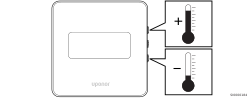
To adjust the thermostat temperature setpoint of the current control mode:
-
Press the
or button once.The screen shows the current setpoint flashing.
-
Press the
or button repeatedly to adjust the setpoint temperature. It will change with increments of 0.5.When the new setpoint is set, the screen returns to run mode after a few seconds, showing the room temperature.
Analogue thermostat functions
Disable timer function (T-143 and T-145 only)
Thermostats T-143 and T-145 have switches on their backs allowing the user to disable the timer function (Comfort mode) for the channels controlled by the thermostat. The switch is set to Comfort/ECO from the factory.
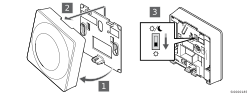
To change the switch to Disable timer:
Angle the thermostat from the bracket.
Remove it from the wall.
Switch to Comfort mode
.Put the thermostat back on the wall.
Digital thermostat functions
Run mode
During normal operation the thermostat is in run mode.
While in run mode the display shows specific control mode information.
Control mode
|
Error, enter correct language code |
|
The thermostat control mode must be set before the thermostat is registered to the room controller. Later changes to this setting requires the thermostat to be registered again. |
|
Error |
If no button on the thermostat is pressed for about 8 seconds, while in a submenu, the current values will be saved and the software exits to the settings menu. About about 60 seconds later, it exits to run mode. |
The thermostat has four different control modes, set in the settings menu.
Change control mode
See Change settings, for how to change the setting.
Uponor Smatrix Base T-146
Thermostat function |
Display text |
|---|---|
Room temperature sensor |
RT |
Room temperature sensor and floor temperature sensor |
RFT |
Remote sensor |
RS |
Room temperature sensor and outdoor temperature sensor |
RO |
Different types of information can be shown in the display when in a control mode. Use the OK button to toggle between the information available.
Room temperature sensor
Room temperature (default)
Room temperature sensor and floor temperature sensor
Room temperature (default)
Floor temperature
Remote sensor
Remote sensor (default)
Room temperature sensor and outdoor temperature sensor
Room temperature (default)
Outdoor temperature
Uponor Smatrix Base T-148
Thermostat function |
Display text |
|---|---|
Room temperature sensor |
RT |
Room temperature sensor and floor temperature sensor |
RFT |
Remote sensor |
RS |
Room temperature sensor and outdoor temperature sensor |
RO |
Different types of information can be shown in the display when in a control mode. Use the OK button to toggle between the information available.
Room temperature sensor
Room temperature (default)
Relative humidity
Room temperature sensor and floor temperature sensor
Room temperature (default)
Relative humidity
Floor temperature
Remote sensor
Remote sensor (default)
Relative humidity
Room temperature sensor and outdoor temperature sensor
Room temperature (default)
Relative humidity
Outdoor temperature
Uponor Smatrix Base T-149
Thermostat function |
Symbol |
|---|---|
Room temperature sensor |
 |
Room temperature sensor and floor temperature sensor |
 |
Remote sensor |
 |
Room temperature sensor and outdoor temperature sensor |
 |
Different types of information can be shown in the display when in a control mode. Use the OK button to toggle between the information available.
Room temperature sensor
Room temperature (default)
Alarm list (only shown if an alarm is present)
Room temperature, current ECO/Comfort mode, and current heating/cooling demand
Relative humidity
Room temperature sensor and floor temperature sensor
Room temperature (default)
Alarm list (only shown if an alarm is present)
Floor temperature, current ECO/Comfort mode, and current heating/cooling demand
Relative humidity
Remote sensor
Remote sensor (default)
Alarm list (only shown if an alarm is present)
Remote sensor, current ECO/Comfort mode, and current heating/cooling demand
Relative humidity
Room temperature sensor and outdoor temperature sensor
Room temperature (default)
Alarm list (only shown if an alarm is present)
Outdoor temperature, current ECO/Comfort mode, and current heating/cooling demand
Relative humidity
Thermostat settings
|
Error |
If no button on the thermostat is pressed for about 8 seconds, while in a submenu, the current values will be saved and the software exits to the settings menu. About about 60 seconds later, it exits to run mode. |
In this menu all settings regarding the operation of the thermostat is set.
Change settings
Uponor Smatrix Base T-146
To enter the settings menu:
Press and hold the OK button for about 3 seconds.
The settings icon and menu numbers is displayed in the top right corner of the display.
-
Use buttons - or + to change the numbers to locate a submenu (see list below).
02Heating/cooling changeover
This menu is not visible if the thermostat is registered to a room controller.
03ECO mode setback temperature
04Control mode
05High floor temperature limitation
06Low floor temperature limitation
07Cooling allowed
08Display unit
09Climatic controller integration
11Room temperature calibration
-
Press OK to enter parameter edit mode.
The parameter starts flashing.
Change parameters in the submenus.
Press and hold the OK button for about 3 seconds to exit the settings menu.
Uponor Smatrix Base T-148
To enter the settings menu:
Press and hold the OK button for about 3 seconds.
The settings icon and menu numbers is displayed in the top right corner of the display.
-
Use buttons - or + to change the numbers to locate a submenu (see list below).
00Program
02Heating/cooling changeover
This menu is not visible if the thermostat is registered to a room controller.
03ECO mode setback temperature
04Control mode
05High floor temperature limitation
06Low floor temperature limitation
07Cooling allowed
08Display unit
09Climatic controller integration
10Time and date
11Room temperature calibration
-
Press OK to enter parameter edit mode.
The parameter starts flashing.
Change parameters in the submenus.
Press and hold the OK button for about 3 seconds to exit the settings menu.
Uponor Smatrix Base T-149
To enter the settings menu:
Press and hold the OK button for about 3 seconds.
The settings icon and menu numbers is displayed in the top right corner of the display.
-
Use buttons
02 or to change the numbers to locate a submenu (see list below).Heating/cooling changeover
This menu is not visible if the thermostat is registered to a room controller.
03ECO mode setback temperature
04Control mode
05High floor temperature limitation
06Low floor temperature limitation
07Cooling allowed
08Display unit
09Climatic controller integration
11Room temperature calibration
12Invert screen
-
Press OK to enter parameter edit mode.
The menu number is underlined.
Change parameters in the submenus.
Press and hold the OK button for about 3 seconds to exit the settings menu.
00 Program (T-148 only)
|
Error |
As long as scheduling (program 00) is activated (not set to Off) in a programmable digital thermostat, no other unit is allowed to change (override) the Comfort/ECO mode in that room. |
In this menu, one of seven different scheduling programs for Comfort/ECO mode can be set.
Program 1 to 6 is pre-programmed and the 7th is user defined. The scheduled programs show the day split into 30 minute intervals which is set to either Comfort (black marker) or ECO mode (blank marker).
This menu is not visible if a communication module is connected to the system. Settings are referred to the Uponor Smatrix Pulse app.
If Off (default) is selected, the room follows the current system Comfort/ECO mode.
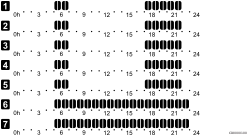
Program P1
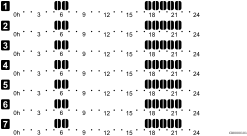
Program P2
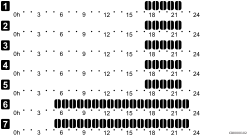
Program P3
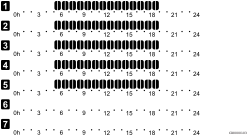
Program P4
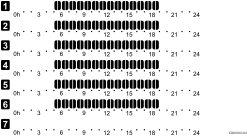
Program P5
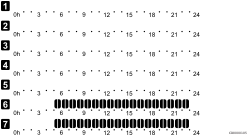
Program P6
Select scheduling program
To select a scheduling program:
Press OK to enter parameter edit mode.
-
Use buttons - or + to select program.
Select between: P1–P6, U (user defined program) and Off.
Press OK to confirm program selection and return to the settings menu.
Customise user defined program for a single day
To customise the user defined program:
Press OK to enter parameter edit mode.
Use buttons - or + to select program U.
-
Press OK to confirm program selection and return to the settings menu.
The current day starts flashing.
Use buttons - or + to select a day.
Press and hold OK until 00:00 appears on the display (takes about 2 seconds).
Press OK to switch the marked interval between Comfort (
) and ECO mode ( ).
).Use buttons - or + to move the marker (at the bottom of the display). When moving the marker from one interval to another save the selected mode to that interval.
Repeat steps 6 and 7 until the display shows 23:30.
Press + to finalize the current day and the software exits to the settings menu.
Repeat from step 1 to customise another day.
Customise user defined program for a full week
|
Error |
This method resets the current user defined program to factory defaults. |
To customise the user defined program:
Press OK to enter parameter edit mode.
Use buttons - or + to select program U.
Press and hold OK until day 1 and 00:00 appears on the display.
Press OK to switch the marked interval between Comfort (
) and ECO mode ().Use buttons - or + to move the marker (at the bottom of the display). When moving the marker from one interval to another save the selected mode to that interval.
Repeat steps 4 and 5 until the display shows 23:30.
-
Press + to finalize programming the current day.
The text Copy Yes appears (Yes is flashing).
-
Use buttons - or + to select Yes or No and press OK to confirm.
Yes: Copy the setting of the current day to the next. Repeat for every day that should be identical.
No: Create a new scheduling interval for the following day. Then repeat steps 4 through 8 until the whole week is programmed.
The display returns to the settings menu when the final day is done.
02 Heating/cooling changeover
This menu is not visible if the thermostat is registered to a room controller. Heating/cooling changeover will be controlled by a physical heating/cooling switch or in the Uponor Smatrix Pulse app (requires communication module).
03 ECO mode setback temperature
Default: 4 ˚C
Setting range: 0 – 11 ˚C, 0.5 ˚C increments
In this menu the setback temperature for whenever the channel is in ECO mode is set.
The setting adjusts the current setpoint with the set value. In heating mode the setpoint is reduced, and in cooling mode it is increased.
If the setback temperature is set to 0, the thermostat will remain unaffected if a program sets the system in ECO mode.
This menu is not visible if a communication module is connected to the system. The setting is then available in the Uponor Smatrix Pulse app.
See Change settings, for how to change the setting.
04 Control mode
In this menu control mode for the thermostat is set.
If an external sensor is connected to the thermostat, a control mode must be chosen to accommodate the extra functionality of the sensor.
Current control mode is displayed (RT, RFT, RS or RO).
See Change settings, for how to change the setting.
Uponor Smatrix Base T-146
Display text |
Description |
|---|---|
RT |
Room temperature sensor |
RFT |
Room temperature sensor and floor temperature sensor |
RS |
Remote sensor |
RO |
Room temperature sensor and outdoor temperature sensor |
Uponor Smatrix Base T-148
Display text |
Description |
|---|---|
RT |
Room temperature sensor |
RFT |
Room temperature sensor and floor temperature sensor |
RS |
Remote sensor |
RO |
Room temperature sensor and outdoor temperature sensor |
Uponor Smatrix Base T-149
Symbol |
Description |
|---|---|
|
Room temperature sensor |
|
Room temperature sensor and floor temperature sensor |
|
Remote sensor |
|
Room temperature sensor and outdoor temperature sensor |
05 High floor temperature limitation
|
Error |
This parameter cannot be set lower than the set value in settings menu 06 Low floor temperature limitation. |
Default: 26 ˚C
Setting range: 20 – 35 ˚C, 0.5 ˚C increments
In this menu a limit on the maximum allowable floor temperature is set.
This menu is only visible if control mode RFT is activated in settings menu 04. For systems with a communication module this menu only shows the set value, changes are done in the Uponor Smatrix Pulse app.
See Change settings, for how to change the setting.
06 Low floor temperature limitation
|
Error |
This parameter cannot be set higher than the set value in settings menu 05 High floor temperature limitation. |
Default: 20 ˚C
Setting range: 10 – 30 ˚C, 0.5 ˚C increments
In this menu a limit on the minimum allowable floor temperature is set.
This menu is only visible if control mode RFT is activated in settings menu 04. For systems with a communication module this menu only shows the set value, changes are done in the Uponor Smatrix Pulse app.
See Change settings, for how to change the setting.
07 Cooling allowed
In this menu it is set whether cooling is allowed in the room or not.
This menu is not visible if a communication module is connected to the system. The setting is then available in the Uponor Smatrix Pulse app.
See Change settings, for how to change the setting.
Uponor Smatrix Base T-146
Display text |
Description |
|---|---|
Yes |
Shows the cooling demand icon |
No |
Hides the cooling demand icon |
Uponor Smatrix Base T-148
Display text |
Description |
|---|---|
Yes |
Shows the cooling demand icon |
No |
Hides the cooling demand icon |
Uponor Smatrix Base T-149
Symbol |
Description |
|---|---|
|
Shows the cooling demand icon |
 |
Hides the cooling demand icon |
08 Display unit
In this menu temperature display unit is set.
See Change settings, for how to change the setting.
Uponor Smatrix Base T-146
Display text |
Description |
|---|---|
DEg ˚C |
Degrees Celsius |
DEg ˚F |
Degrees Fahrenheit |
Uponor Smatrix Base T-148
Display text |
Description |
|---|---|
DEg ˚C |
Degrees Celsius |
DEg ˚F |
Degrees Fahrenheit |
Uponor Smatrix Base T-149
Symbol |
Description |
|---|---|
|
Degrees Celsius |
|
Degrees Fahrenheit |
10 Time and date (T-148 only)
In this menu time and date is set. This setting is required to utilise scheduling programs for this thermostat.
If another programmable digital thermostat is registered to the room controller (with a lower channel number), or if the Uponor Smatrix Pulse app is used, they will push the set time and date to the thermostat. Then only the 12/24 h setting is available.
Use buttons - or + to change the value. Press the OK button to set the value and move to the next editable value.
Values will be set in the following order.
Hours
Minutes
12/24h mode
Day of the week (1 = Monday, 7 = Sunday)
Day of the month
Month
Year
See Change settings, for how to change the setting.
11 Room temperature calibration
Default: 0.0 ˚C
Setting range: -6.0 – 6.0 ˚C, 0.1 ˚C increments
In this menu the room temperature shown in the thermostat display can be calibrated.
See Change settings, for how to change the setting.
12 Invert screen (T-149 only)
In this menu the colour in the display can be inverted.
See Change settings, for how to change the setting.
Factory reset
|
Error |
Do not factory reset the thermostat if not absolutely needed. |
|
Error |
A factory reset removes the registration data from the thermostat. |
Factory reset sets all parameter values to default settings.
Uponor Smatrix Base T-141
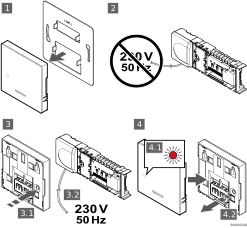
|
Error |
| This operation might need two persons to complete. |
To factory reset the thermostat:
Remove the thermostat from the wall.
Disconnect the controller from the power supply.
Press and hold the registration button on the thermostat while reconnecting the controller to power again.
Release the button after about 10 seconds when the LED start flashing.
The thermostat is now reset to factory default.
Uponor Smatrix Base T-143
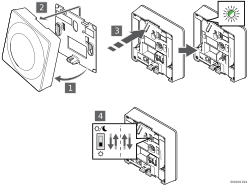
To factory reset the thermostat:
Angle the thermostat from the bracket.
Remove it from the wall.
Gently press and hold the registration button on the thermostat, release when the demand LED starts flashing.
Change the Disable timer switch twice, regardless of starting position.
The thermostat is now reset to factory default.
Uponor Smatrix Base T-165
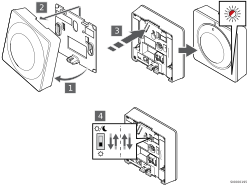
To factory reset the thermostat:
Angle the thermostat from the bracket.
Remove it from the wall.
Gently press and hold the registration button on the thermostat, release when the demand LED starts flashing.
Change the Disable timer switch twice, regardless of starting position.
The thermostat is now reset to factory default.
Uponor Smatrix Base T-146/T-148
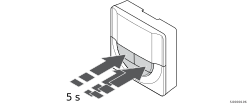
To factory reset the thermostat:
Press and hold the -, + and OK buttons for about 5 seconds until the screen goes blank.
The thermostat is now reset to factory default.
Uponor Smatrix Base T-149
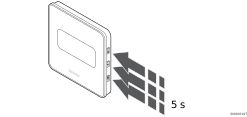
To factory reset the thermostat:
Press and hold the
, and OK buttons for about 5 seconds until the screen goes blank.The thermostat is now reset to factory default.
Maintenance
Manual preventive maintenance
|
Error, enter correct language code |
Do not use any detergents to clean the Uponor Smatrix components. |
The Uponor Smatrix room controller requires no preventive maintenance except cleaning:
Use a dry soft cloth to clean the components.
Automatic preventive maintenance
The Uponor Smatrix room controller is equipped with an automatic exercise function. This function consists of a test run designed to prevent the pump and actuators from seizing up due to inactivity.
This exercise is run every 6 days ±24 hours at random:
The pump exercise is only run if the pump has not been run since the last exercise. During the exercise the pump is activated for 3 minutes.
The actuator exercise is only run if the actuators have not been operated since the last exercise. The exercise periodically opens and closes the actuators.
If the system includes a communication module, the exercise function can be activated at any time using the Uponor Smatrix Pulse app.
Corrective maintenance
Fallback mode
If a thermostat is malfunctioning or not detected, the room controller executes the fallback mode to maintain the temperature in the room (heating mode only) until the problem is resolved.
Resetting the room controller
If the room controller does not work as expected, for example due to a hang-up, it can be reset to solve the problem:
Disconnect and reconnect the room controller to AC power.
Troubleshooting
General
This section describes general problems and alarms that can occur with the Uponor Smatrix system and describes solutions. A common cause of a problem though may be due to wrongly installed loops or mixed up thermostats.
Fluctuating floor temperature
Floor temperature is changing abnormally between hot and cold in heating mode
-
Supply water temperature is too high
Check boiler or shunt
Run supply diagnostic test in the Uponor Smatrix Pulse app (requires communication module)
Room temperature does not match setpoint on thermostat, and actuators shut on/off on a fixed interval
-
Heating fallback function is activated due to lost communication with thermostat
Check the connection of the room thermostat and make sure that the wiring is OK
Check the Uponor Smatrix Pulse app (requires communication module) for an error indicating that a thermostat has lost connection
Reconnect if the connection is lost
Room temperature does not match setpoint on thermostat
-
The thermostat is placed in direct sunlight or close to other heat sources
Check placement of the thermostat according to installation instructions and change location if needed
-
The thermostat is placed in the wrong room.
Check the placement of the thermostats and change rooms if needed.
The room is too cold (or too warm in cooling mode)
Thermostat setpoint is too low
-
The thermostat setting is too low
Change the temperature setpoint
Use maximum and minimum settings in the Uponor Smatrix Pulse app (requires communication module) to protect the system from consequences of unreasonable temperature settings
The temperature displayed on the thermostat changes after the thermostat is moved
-
The thermostat may be influenced by an external heat source
Change location of the thermostat
Installation report and room controller/channel numbering on the thermostat label doesn't match
-
The thermostats of individual rooms are incorrectly registered
Place the thermostat in the correct room or change the thermostat registration in the room controller
White indicator cannot be seen in window of an actuator
-
An actuator does not open
Replace the actuator
Contact the installer
Setpoint temperature displayed in the room information menu is lower than the temperature set on the thermostat
-
Incorrect minimum/maximum limitation
Change the minimum/maximum limitation in the Uponor Smatrix Pulse app (requires communication module)
ECO mode
-
ECO in room information menu
Change the current room ECO profile, or assign another profile, in the Uponor Smatrix Pulse app (requires communication module)
Reduce the ECO setback value for the thermostat
The room is too warm (or too cold in cooling mode)
Corresponding loop is warm even after a long period without heat call
-
An actuator does not close
Contact the installer
Check that the actuator is correctly installed
Replace the actuator
-
The actuator may still be in its initial factory default position (open).
Adjust setpoint temporarily to maximum setting so the acutators fully open (channel LED is red), to deactivate the default position.
The floor is cold
The room temperature OK but the floor is cold
No heat demand from the underfloor heating system
The room is heated by another heat source
All rooms are cold (or warm in cooling mode)
ECO mode symbol shown
-
System in ECO mode
Change ECO profile or assign another profile to the room
Reduce the ECO setback value for the thermostat
Reduce the General ECO setback value in the Uponor Smatrix Pulse app (requires communication module)
Cancel temporary ECO
Check the chiller information and operation mode in the Uponor Smatrix Pulse app (requires communication module)
-
The system is in cooling mode
Correct signal from external device needed
Check the boiler information and operation mode in the Uponor Smatrix Pulse app (requires communication module)
-
The system is in heating mode
Correct signal from external device needed
Disturbing noise from the pump at the same time every week
Change time for pump exercise in the Uponor Smatrix Pulse app (requires communication module)
No communication
Communication error
-
Registration lost
Contact the installer
Check the registration status of the room controller
-
Software versions incompatible
Check software versions of the Uponor components in the Uponor Smatrix Pulse app (or thermostat displays during startup)
Contact the installer
-
The communication module is installed inside a metal cabinet, or too close to other shielding objects
Change the communication module location. If the problem persists, contact the installer
Slow system (long reaction times for changes of settings)
Long bus cables in the system
Use quality cabling, shielded twisted pair data cabling recommended
If the total length of the bus cables is longer than 250 m, install 120 Ω resistors between the A and B terminals at the endpoint devices
Use line bus with multi drop topology in large installations
Make sure that the bus cable is connected to the - terminal on all connected devices
Unable to register slave room controller to master room controller
Long bus cables in the system
Use quality cabling, shielded twisted pair data cabling recommended
If the total length of the bus cables is longer than 250 m, install 120 Ω resistors between the A and B terminals at the endpoint devices
Use line bus with multi drop topology in large installations
Make sure that the bus cable is connected to the - terminal on all connected devices
Several attempts required to register components to room controllers
Long bus cables in the system
Use quality cabling, shielded twisted pair data cabling recommended
If the total length of the bus cables is longer than 250 m, install 120 Ω resistors between the A and B terminals at the endpoint devices
Use line bus with multi drop topology in large installations
Make sure that the bus cable is connected to the - terminal on all connected devices
Communication failure between the room controllers
Communication error
-
Registration to room controller is lost
Contact the installer
Check the registration status of the room controller
Check the room controller configuration
Check the wiring
Slow system (long reaction times for changes of settings)
Long bus cables in the system
Use quality cabling, shielded twisted pair data cabling recommended
If the total length of the bus cables is longer than 250 m, install 120 Ω resistors between the A and B terminals at the endpoint devices
Use line bus with multi drop topology in large installations
Make sure that the bus cable is connected to the - terminal on all connected devices
Unable to register slave room controller to master room controller
Long bus cables in the system
Use quality cabling, shielded twisted pair data cabling recommended
If the total length of the bus cables is longer than 250 m, install 120 Ω resistors between the A and B terminals at the endpoint devices
Use line bus with multi drop topology in large installations
Make sure that the bus cable is connected to the - terminal on all connected devices
Several attempts required to register components to room controllers
Long bus cables in the system
Use quality cabling, shielded twisted pair data cabling recommended
If the total length of the bus cables is longer than 250 m, install 120 Ω resistors between the A and B terminals at the endpoint devices
Use line bus with multi drop topology in large installations
Make sure that the bus cable is connected to the - terminal on all connected devices
Troubleshooting after installation
The system does not start
The power indicator in the room controller is off
-
There is no AC power to the room controller
Check that the room controller is connected to AC power
Check the wiring in the 230 V compartment
Check that there is 230 V AC power in the wall socket
There is 230 V AC power in the wall socket
-
Blown room controller fuse or faulty power cable
Replace the fuse and/or power cable and plug
The thermostat is faulty
Channel LEDs in the room controller continue flashing
-
The thermostat is not correctly installed
-
Connect the thermostat directly to the room controller with a short bus connection to verify thermostat functionality.
If the thermostat functions correctly check the existing wiring (cable and connections) before replacing the wiring, otherwise replace the thermostat.
-
External comfort/ECO switch doesn't work
The system doesn't switch between Comfort and ECO mode
-
More than one Comfort/ECO switch is connected to the system (to the GPI and public thermostat system device)
Select one of the switches (either GPI or public thermostat system device) and uninstall the other one (only one swtich in the system is supported)
Digital thermostat alarms/problems
An alarm is sent when more than 1 hours have elapsed since the room controller communicated with the thermostat.
Uponor Smatrix Base T-146/T-148
Alarm symbols
Icon |
Description |
|---|---|
|
Communication indicator |
|
Indoor temperature indicator Remote sensor temperature indicator (RS mode) The text Err and a flashing sensor icon indicates a faulty sensor |
|
Indoor temperature with floor temperature limitation indicator The text Err and a flashing floor sensor icon indicates a faulty sensor |
|
Floor temperature indicator The text Err and a flashing floor sensor icon indicates a faulty sensor |
|
Outdoor temperature indicator The text Err and a flashing outdoor sensor icon indicates a faulty sensor |
|
Relative humidity limit reached This symbol is only shown if cooling is active, and if RH control is be activated in the Uponor Smatrix Pulse app (requires communication module). |
The display is off
-
The cable is not connected or a wire is damaged
Check the wiring
-
Connect the thermostat directly to the room controller with a short bus connection to verify thermostat functionality.
If the thermostat functions correctly check the existing wiring (cable and connections) before replacing the wiring, otherwise replace the thermostat.
Communication icon is not displayed on thermostat screen when –/+ buttons are pressed
-
The cable is not connected or a wire is damaged
Check the wiring
-
Connect the thermostat directly to the room controller with a short bus connection to verify thermostat functionality.
If the thermostat functions correctly check the existing wiring (cable and connections) before replacing the wiring, otherwise replace the thermostat.
-
The thermostat is faulty
Force the thermostat to transmit by changing the temperature setpoint
Replace thermostat
Relative humidity icon is displayed (T-148 only)
|
Error |
RH control is activated in the Uponor Smatrix Pulse app (requires communication module). |
-
The relative humidity limit is reached
Lower the humidity level by increasing the ventilation or activating a dehumidifier
The icon for floor temperature sensor flashes
-
Faulty temperature sensor
Check the connection of the floor sensor
Disconnect the temperature sensor and check it with an ohmmeter. Make sure the value aligns with the temperatuer sensor diagram, see External temperature sensor resistance diagram
-
Incorrect thermostat control mode, or temperature sensor not connected
Select correct thermostat control mode (settings menu 4)
The icon for outdoor temperature sensor flashes
-
Faulty temperature sensor
Check the connection of the outdoor sensor
Disconnect the temperature sensor and check it with an ohmmeter. Make sure the value aligns with the temperatuer sensor diagram, see External temperature sensor resistance diagram
-
Incorrect thermostat control mode, or temperature sensor not connected
Select correct thermostat control mode (settings menu 4)
The icon for indoor temperature sensor flashes
-
Faulty temperature sensor
Contact the installer or replace the thermostat
Check the connection of the remote sensor (if connected)
Disconnect the remote temperature sensor (if connected) and check it with an ohmmeter. Make sure the value aligns with the temperatuer sensor diagram, see External temperature sensor resistance diagram
-
Incorrect thermostat control mode, or temperature sensor not connected
Select correct thermostat control mode (settings menu 4)
Uponor Smatrix Base T-149
Alarm symbols
The figure shows all possible symbols and characters that can be shown on the display:
Item |
Icon |
Description |
|---|---|---|
A |
|
Alarm mode |
B |
|
Faulty indoor temperature sensor |
|
Faulty floor temperature sensor |
|
|
Faulty remote temperature sensor |
|
|
Faulty outdoor temperature sensor |
|
C |
|
Relative humidity limit reached (high limit) This symbol is only shown if cooling is active, and if RH control is be activated in Uponor Smatrix Pulse app (requires communication module). |
D |
|
Communication fault indicator |
Alarm icon is displayed
-
An error has occured
Go to the alarm list for more information
The display is off
-
The cable is not connected or a wire is damaged
Check the wiring
-
Connect the thermostat directly to the room controller with a short bus connection to verify thermostat functionality.
If the thermostat functions correctly check the existing wiring (cable and connections) before replacing the wiring, otherwise replace the thermostat.
Communication fault icon is displayed in the alarm list
-
The cable is not connected or a wire is damaged
Check the wiring
-
Connect the thermostat directly to the room controller with a short bus connection to verify thermostat functionality.
If the thermostat functions correctly check the existing wiring (cable and connections) before replacing the wiring, otherwise replace the thermostat.
-
The thermostat is faulty
Force the thermostat to transmit by changing the temperature setpoint
Replace thermostat
Relative humidity icon is displayed in the alarm list
|
Error |
RH control is activated in the Uponor Smatrix Pulse app (requires communication module). |
-
The relative humidity limit is reached
Lower the humidity level by increasing the ventilation or activating a dehumidifier
Floor temperature sensor icon is displayed in the alarm list
-
Faulty temperature sensor
Check the connection of the floor sensor
Disconnect the temperature sensor and check it with an ohmmeter. Make sure the value aligns with the temperatuer sensor diagram, see External temperature sensor resistance diagram
-
Incorrect thermostat control mode, or temperature sensor not connected
Select correct thermostat control mode (settings menu 4)
Outdoor temperature sensor icon is displayed in the alarm list
-
Faulty temperature sensor
Check the connection of the outdoor sensor
Disconnect the temperature sensor and check it with an ohmmeter. Make sure the value aligns with the temperatuer sensor diagram, see External temperature sensor resistance diagram
-
Incorrect thermostat control mode, or temperature sensor not connected
Select correct thermostat control mode (settings menu 4)
Indoor temperature sensor icon is displayed in the alarm list
-
Faulty temperature sensor
Contact the installer or replace the thermostat
Remote temperature sensor icon is displayed in the alarm list
-
Faulty temperature sensor
Check the connection of the remote sensor
Disconnect the remote temperature sensor and check it with an ohmmeter. Make sure the value aligns with the temperatuer sensor diagram, see External temperature sensor resistance diagram
-
Incorrect thermostat control mode, or temperature sensor not connected
Select correct thermostat control mode (settings menu 4)
External temperature sensor resistance diagram
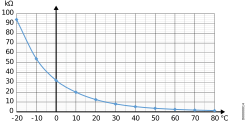
Temperature (°C) |
Resistance (kΩ) |
|---|---|
-20 |
94 |
-10 |
54 |
0 |
32 |
10 |
20 |
20 |
12.5 |
30 |
8 |
40 |
5.3 |
50 |
3.6 |
60 |
2.5 |
70 |
1.8 |
80 |
1.3 |
Analogue thermostat alarms/problems
An alarm is sent when more than 1 hours have elapsed since the room controller communicated with the thermostat.
Uponor Smatrix Base T-143/T-145
The channel LED on the room controller flashes
-
The public thermostat T-163 is removed from the wall
Check the thermostat settings and put it back on the wall
Communication module alarms/problems
|
Error |
Setting up a system with a communication module requires a mobile device (smart phone/tablet). |
See Communication module LEDs, for more information about the communication module LED status.
Alarms shown in Uponor Smatrix Pulse app
If an alarm is triggered, it will be shown as an alert in the Uponor Smatrix Pulse app. Information about, and possible solutions are presented in the app. If connected to Uponor cloud services, the mobile phone will also receive the alarm as a push notification.
Thermostat lost
The room controller is having problem communicating with the thermostat.
Force the thermostat to transmit by changing the temperature setpoint.
If the problem persists:
Make sure the cable is connected, or that a wire is not damaged
Replace the thermostat if nothing else works, the thermostat is broken
Room controller lost (master room controller)
Communication failure with the room controller. The room controller LED is flashing red.
Make sure the room controller is powered on.
Make sure that the communication cable between communication module and room controller is connected, and not damaged.
Restart the controller and communication module if a factory reset of the communication module has been performed (unplug and plug in the controller from the wall socket).
Otherwise contact the installer.
Room controller lost (sub room controller)
Communication failure with the room controller.
Make sure the room controller is powered on.
Make sure that the system bus cable is connected, and not damaged.
Try registering the sub room controller to the master room controller again.
Long bus cables in the system
Use quality cabling, shielded twisted pair data cabling recommended
If the total length of the bus cables is longer than 250 m, install 120 Ω resistors between the A and B terminals at the endpoint devices
Use line bus with multi drop topology in large installations
Make sure that the bus cable is connected to the - terminal on all connected devices
Otherwise contact the installer.
Communication error with communication module
There is an communication error with the communication module. The room controller LED is flashing red.
Restart the controller and communication module (unplug and plug in the controller from the wall socket) and try again.
The communication module has lost communication with Uponor cloud services
This alarm will only be received as a push notification and/or SMS (if activated) to the mobile phone number registered to the customer account in Uponor cloud services.
There is an communication error between the communication module and Uponor cloud services. The communication module LED is fixed red, or flashing orange.
Make sure the communication module is connected to an internet connected router, via either Wi-Fi or ethernet.
Make sure the communication module is connected to the room controller.
Restart the router if needed.
Restart the controller and communication module if needed (unplug and plug in the controller from the wall socket).
The communication module has re-established communication with Uponor cloud services
This alarm will only be received as a push notification and/or SMS (if activated) to the mobile phone number registered to the customer account in Uponor cloud services.
The communication between communication module and Uponor cloud services is re-established, and the communication module LED is fixed green.
Software update failed
The room controller software update has failed.
Make sure all sub room controllers are connected to the master room controller.
Restart the room controller (power off and on again).
Long bus cables in the system
Use quality cabling, shielded twisted pair data cabling recommended
If the total length of the bus cables is longer than 250 m, install 120 Ω resistors between the A and B terminals at the endpoint devices
Use line bus with multi drop topology in large installations
Make sure that the bus cable is connected to the - terminal on all connected devices
Contact the installer if the problem persists.
Floor temperature limit reached
The floor temperature is either too high or too low. This may be due to:
The floor is heated by the sun, or another heat source. Wait until the floor temperature is lowered.
The floor is cooled by a cool draft, or similar. Wait until the floor temperature is higher.
Too high supply temperature to the room. Review the heat source settings, if applicable.
Too low supply temperature to the room. Review the heat source settings, if applicable.
Too high setpoint for the room. Reduce the setpoint.
Too low setpoint for the room. Increase the setpoint.
Floor temperature limit to low. Increase the limit.
Faulty temperature sensor
An error has been detected with the internal temperature sensor in the thermostat.
Replace the thermostat.
Faulty external temperature sensor
An error has been detected with the external sensor connected to the thermostat.
Make sure the correct thermostat control mode (settings menu 4) is set in the digital thermostat
Check the connection of the external sensor.
Disconnect the external sensor and check it with an ohmmeter. Make sure the value aligns with the temperatuer sensor diagram.
If the error persists, replace the external sensor.
Faulty relative humidity sensor
|
Error |
RH control is activated in the Uponor Smatrix Pulse app (requires communication module). |
An error has been detected with the internal relative humidity sensor in the thermostat.
Replace the thermostat.
Faulty Comfort/ECO switch
The room controller is having problem communicating with the system device configured as an external switch.
Force the thermostat to transmit by opening/closing the external switch.
If the problem persists:
Make sure the cable between the room controller and system device thermostat is connected, or that a wire is not damaged
Replace the system device thermostat if nothing else works, the system device thermostat is broken
Relative humidity sensor limit
|
Error |
RH control is activated in the Uponor Smatrix Pulse app (requires communication module). |
The relative humidity limit is reached.
Lower the humidity level by starting a dehumidifier or increasing the supply temperature setpoint.
Faulty outdoor temperature sensor
An error has been detected with the outdoor temperature sensor connected to the public thermostat.
Check the connection of the outdoor temperature sensor.
Disconnect the external sensor and check it with an ohmmeter. Make sure the value aligns with the temperatuer sensor diagram.
If the error persists, replace the external sensor.
Faulty heating/cooling supply sensor
An error has been detected with the heating/cooling supply sensor connected to the public thermostat.
Check the connection of the heating/cooling supply sensor.
Disconnect the external sensor and check it with an ohmmeter. Make sure the value aligns with the temperatuer sensor diagram.
If the error persists, replace the external sensor.
External heating/cooling switch lost
The room controller is having problem communicating with the system device configured as an external switch.
Force the thermostat to transmit by opening/closing the external switch.
If the problem persists:
Make sure the cable between the room controller and system device thermostat is connected, or that a wire is not damaged
Replace the system device thermostat if nothing else works, the system device thermostat is broken
General systems alarm
Check the external source connected to the GPI and investigate why the general systems alarm has tripped.
High supply temperature
This alarm is only shown if Supply diagnostics is running (the function requires connection to Uponor cloud services).
The supply temperature is too high.
Check the heat source, or supply temperature controller, to lower the supply temperature. Contact the installer if the problem persists.
Low supply temperature
This alarm is only shown if Supply diagnostics is running (the function requires connection to Uponor cloud services).
The supply temperature is too low.
Check the heat source, or supply temperature controller, to increase the supply temperature. Other possible causes may be too low flow on the supply line, or a malfunctioning circulation pump. Contact the installer if the problem persists.
Thermostat tamper alarm
The public thermostat is removed from the wall.
Check the thermostat settings and put it back on the wall.
Low average temperature
Average temperature in the system is lower than set limit (se Installer settings).
The average temperature is calculated using selected rooms (activated in room settings).
This may be due to one of the following probable causes:
Thermostat setpoints are too low. Increase the setpoints on the thermostats in the rooms where the average temperature is calculated
The supply temperature is too low. Check the heat source, or supply temperature controller, to increase the supply temperature. Other possible causes may be too low flow on the supply line, or a malfunctioning circulation pump. Contact the installer if the problem persists
The average temperature limit is too low. Increase the average temperature limit
Other factors, such as opened windows/doors etc. Close doors/windows which might affect the measured temperature
The communication module does not start
-
There is not power to the communication module.
Check the communication cable between the room controller and communication module, make sure it is connected properly.
Replace the communication cable if needed.
Contact the installer or replace the communication module
Wi-Fi connection problems
-
The communication module looses connection with the Wi-Fi network.
-
Connect the communication module to the local network using an Ethernet cable.
For more information see, 5. Connect the optional ethernet cable.
-
-
The communication module cannot connect to the router.
-
In some cases the Wireless mode (or 802.11 mode, or similar) parameter in the router might have to be changed in order to communicate with the communication module via Wi-Fi (802.11 b/g/n at 2.4GHz).
Connect the communication module to the local network using an Ethernet cable.
For more information see, 5. Connect the optional ethernet cable.
-
Contact the installer
For installer contact information, see the installation report in the end of this document. Prepare the following information before contacting an installer:
Installation report
Drawings of the underfloor heating system (if available)
List of all alarms, including time and date
Installer instructions
To determine if a problem is caused by the supply system or the control system, loosen the actuators from the manifold for the room concerned, wait a few minutes and check if the flow pipe of the underfloor heating loop becomes warm.
If the pipe does not become warm, the problem is in the heating system. If the loop becomes warm, the cause could be the room control system.
A supply system defect can be indicated by no warm water in the manifold. Check the boiler and circulation pump.
Technical data
Technical data
Thermostat |
T-143, T-144, T-145, T-146, and T-148 |
|---|---|
IP |
IP20, class III (IP: degree of inaccessibility to active parts of the product and degree of water) |
Max. ambient RH (relative humidity) |
85% at 20 °C |
CE marking |
|
ERP |
IV |
Low voltage tests |
EN 60730-1* and EN 60730-2-9*** |
EMC (electromagnetic compatibility requirements) tests |
EN 60730-1 |
Power supply |
From room controller |
Voltage |
4.5 V to 5.5 V |
Rated impulse voltage |
0.33 kV, OVC I |
Pollution degree |
2 |
Software class |
A |
Operating temperature |
0 °C to +45 °C |
Storage temperature |
-10 °C to +70 °C |
Connection terminals |
0.5 mm² to 2.5 mm² |
Thermostat |
T-141 and T-149 |
|---|---|
IP |
IP20, class III (IP: degree of inaccessibility to active parts of the product and degree of water) |
Max. ambient RH (relative humidity) |
85% at 20 °C |
CE marking |
|
ERP |
IV |
Low voltage tests |
EN 60730-1* and EN 60730-2-9*** |
EMC (electromagnetic compatibility requirements) tests |
EN 60730-1 |
Power supply |
From room controller |
Voltage |
4.5 V to 5.5 V |
Rated impulse voltage |
0.33 kV, OVC I |
Pollution degree |
2 |
Software class |
A |
Operating temperature |
0 °C to +45 °C |
Storage temperature |
-10 °C to +70 °C |
Connection terminals |
0.25 mm² to 0.75 mm² solid, or 0.34 mm² to 0.5 mm² flexible with ferrules |
Communication module |
R-208 |
|---|---|
IP |
IP20, class III (IP: degree of inaccessibility to active parts of the product and degree of water) |
Max. ambient RH (relative humidity) |
85% at 20 °C |
CE marking |
|
Low voltage tests |
EN 60730-1* and EN 60730-2-9*** |
EMC (electromagnetic compatibility requirements) tests |
EN 60730-1 and EN 301-489-3 |
ERM (electromagnetic compatibility and radio spectrum matters) tests |
EN 300 220-3 |
Power supply |
From room controller |
Pollution degree |
2 |
Software class |
A |
Operating temperature |
0 °C to +45 °C |
Storage temperature |
-20 °C to +70 °C |
Wi-Fi connectivity |
802.11 b/g/n @2.4Ghz |
Wi-Fi security |
WPA & WPA2 |
Radio frequency |
868.3 MHz |
Radio frequency, EAC markets only |
869 MHz |
Transmitter duty cycle |
<1% |
Receiver class |
2 |
Connection terminals |
RJ45 Ethernet connection (10/100BaseT) |
Room controller |
X-245 |
|---|---|
IP |
IP20, class II (IP: degree of inaccessibility to active parts of the product and degree of water) |
Max. ambient RH (relative humidity) |
85% at 20 °C |
CE marking |
|
ERP (with communication module and the Uponor Smatrix Pulse app) |
VIII |
ERP (without communication module and the Uponor Smatrix Pulse app) |
IV |
Low voltage tests |
EN 60730-1* and EN 60730-2-1** |
EMC (electromagnetic compatibility requirements) tests |
EN 60730-1 |
Power supply |
230 V AC +10/-15%, 50 Hz or 60 Hz |
Internal fuse |
T5 F3.15AL 250 V, 5x20 3.15A quick acting |
Rated impulse voltage |
2.5 kV, OVC II |
Pollution degree |
2 |
Software class |
A |
Operating temperature |
0 °C to +45 °C |
Storage temperature |
-20 °C to +70 °C |
Maximum consumption |
45 W |
Pump and boiler relay outputs |
230 V AC +10/-15%, 250 V AC 8 A maximum Micro gap, normally open |
General purpose input (GPI) |
Only dry contact |
Valve outputs |
24 V AC, 0.2 A average, 0.4 A peak |
Power connection |
1 m flexible cord, with europlug (except UK), which is connected to the controller |
Connection terminals for power, pump, GPI and boiler |
Up to 4.0 mm² solid, or 2.5 mm² flexible with ferrules |
Connection terminals for bus communication |
0.5 mm² to 2.5 mm² |
Connection terminals for valve outputs |
0.2 mm² to 1.5 mm² |
**)EN 60730-2-1 Automatic electrical controls for household and similar use -- Part 2-1: Particular requirements for electrical controls for electrical household appliances
***)EN 60730-2-9 Automatic electrical controls for household and similar use -- Part 2-9: Particular requirements for temperature sensing controls
Usable in all Europe |
 |
|---|---|
|
Declaration of conformity: We hereby declare under our own responsibility that products dealt with by these instructions satisfy all essential demands linked to the information stated in the Safety instruction booklet. | |

Cable specifications
Cables |
Standard cable length |
Maximum cable length |
Wire gauge |
|---|---|---|---|
Cable from room controller to communication module |
2 m |
5 m |
CAT.5e or CAT.6, RJ 45 connector |
Cable from room controller to actuator |
0.75 m |
20 m |
Room controller: 0.2 mm² to 1.5 mm² |
External sensor cable to thermostat |
5 m |
5 m |
0.6 mm² |
Floor sensor cable to thermostat |
5 m |
5 m |
0.75 mm² |
Outdoor sensor cable to thermostat |
- |
5 m |
Twisted pair |
Cable from relay switch to room controller GPI input |
2 m |
20 m |
Room controller: Up to 4.0 mm² solid, or 2.5 mm² flexible with ferrules Relay: 1.0 mm² to 4.0 mm² |
Uponor Smatrix Base Pulse room controller layout
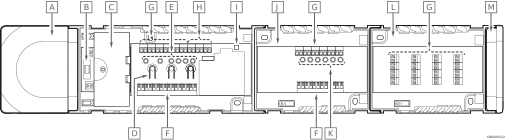
Item |
Description |
|---|---|
A |
Transformer, 230 V AC 50 Hz power module |
B |
Fuse (T5 F3.15AL 250 V) |
C |
Optional inputs and outputs (pump and boiler management) |
D |
Channel registration buttons |
E |
LEDs for channels 01 – 06 |
F |
Quick connectors for actuators |
G |
Bus connection terminals |
H |
System bus connection terminals |
I |
Power LED |
J |
Uponor Smatrix Base Slave Module M-242 (optional slave module) |
K |
LEDs for channels 07 – 12 |
L |
Uponor Smatrix Base Star Module M-243 (optional star module) |
M |
End cap |
Wiring diagram
Uponor Smatrix Base Pulse room controller
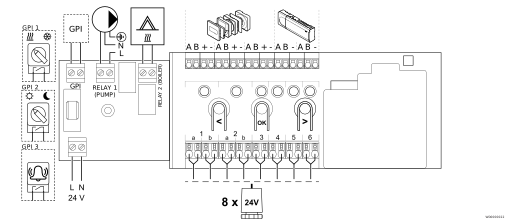
Uponor Smatrix Base Pulse slave module
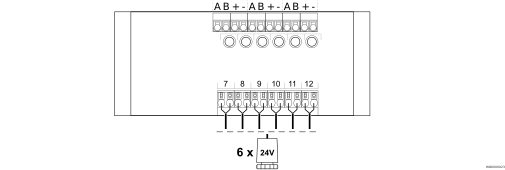
Uponor Smatrix Base Pulse star module

Dimensions
Uponor Smatrix Base Pulse room controller
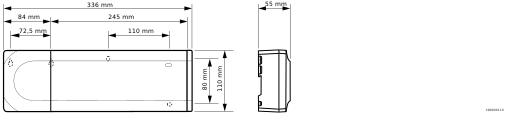
Uponor Smatrix Base Pulse room controller and slave module
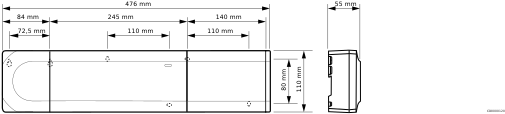
Uponor Smatrix Base Pulse room controller, slave module, and star module
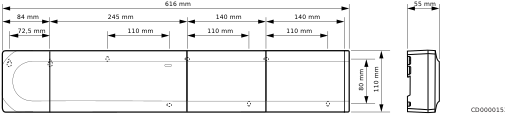
Communication module
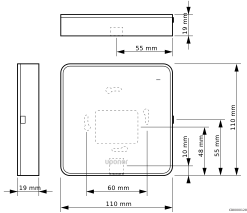
Thermostats
Uponor Smatrix Base T-141
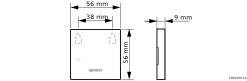
Uponor Smatrix Base T-143
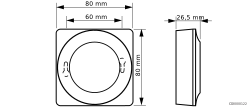
Uponor Smatrix Base T-144
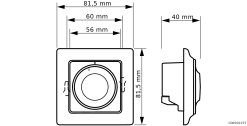
Uponor Smatrix Base T-145
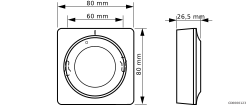
Uponor Smatrix Base T-146
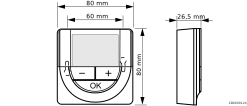
Uponor Smatrix Base T-148
Uponor Smatrix Base T-149
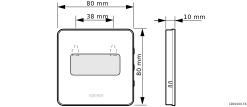
Style thermostat (T-141 and T-149) surface adaptor